Product picture and button colour
Put a picture on a product's button on the till, or choose its colour.
- Who can do this
- Manager Owner
- Permission needed
- «Edit Product»
Every product on the till is a button. A button has either a picture, or a colour with the first letter of the product's name. Cashiers learn the buttons by their look and colour, so they find items fast.
Add a picture
- Open the product: … → Edit.
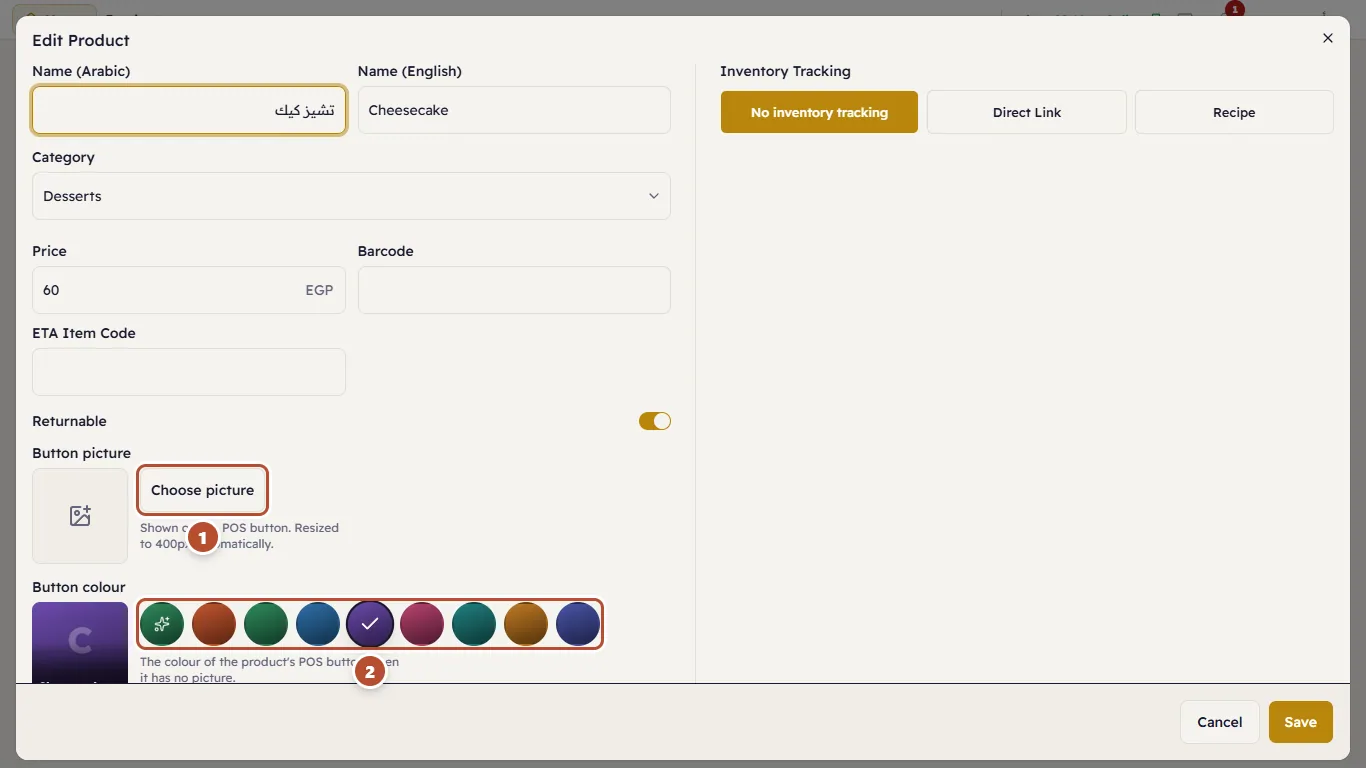
- Under Button picture press Choose picture (1) and pick an image from the computer (JPG, PNG or WebP).
- Press Save.
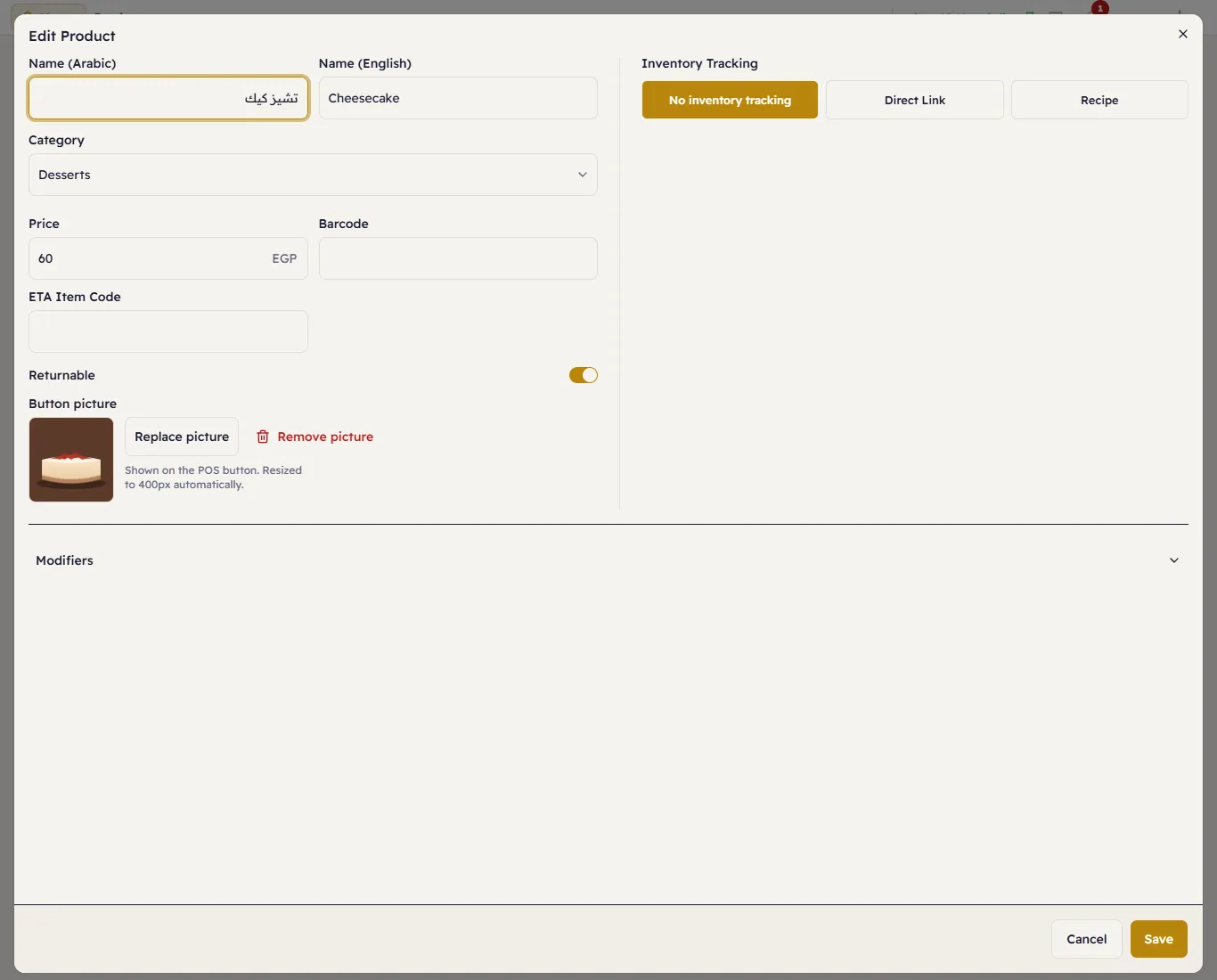
Major shrinks the picture by itself ("Shown on the POS button. Resized to 400px automatically"), so don't worry about its size. Change it with Replace picture and take it off with Remove picture.
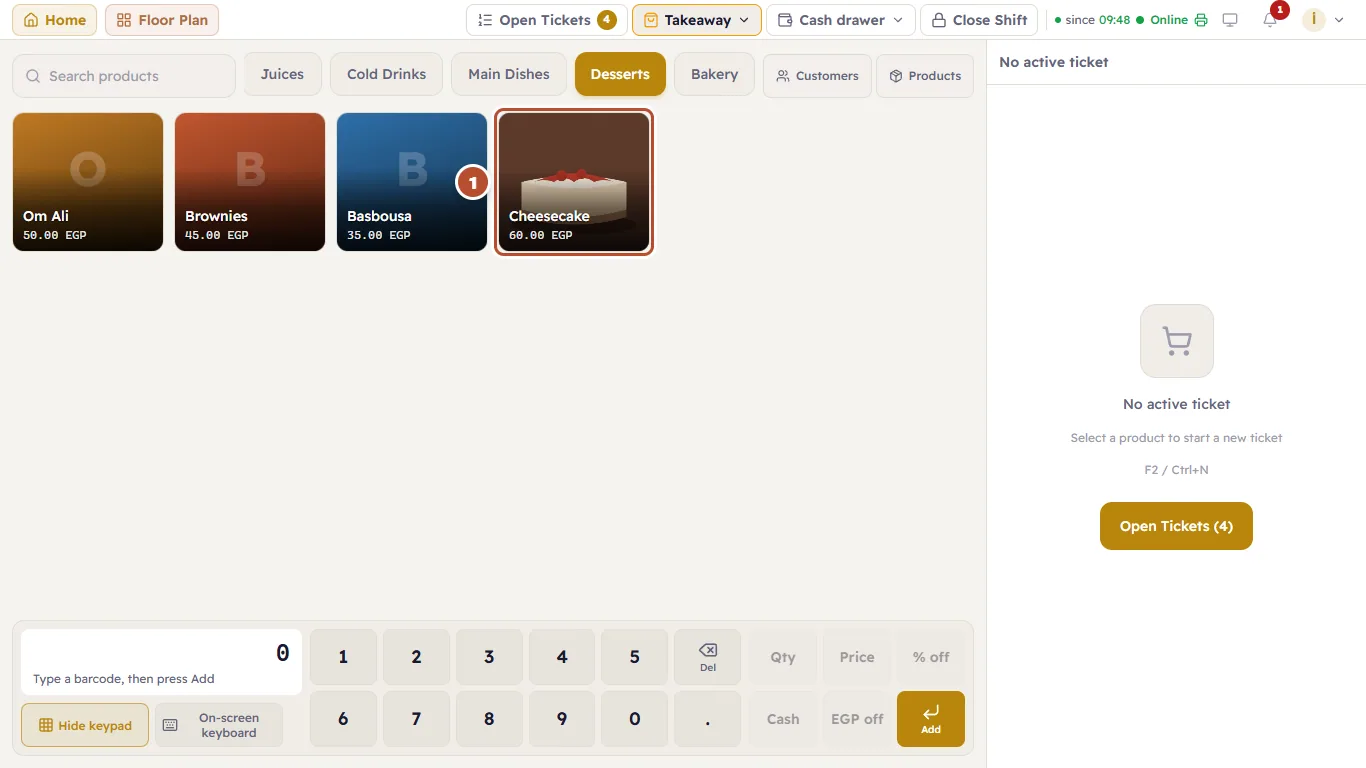
Choose the button colour
When a product has no picture, Button colour (2) sets its button's colour. Automatic (the first circle) picks a fixed colour for the product. Give each kind its own colour (all desserts violet, say) so a cashier spots them from afar.