Discounts and service charge
A discount on one item, a discount on the whole ticket, a service charge, and how VAT is worked out after them.
- Who can do this
- Cashier Waiter Manager Owner
- Permission needed
- «Apply Discount»
A discount on one item
- Tap the line on the ticket.
- Press Item Discount (the % button).
- Choose Percentage or Fixed Amount and type the number (10 means 10%).
- Press Apply Discount.
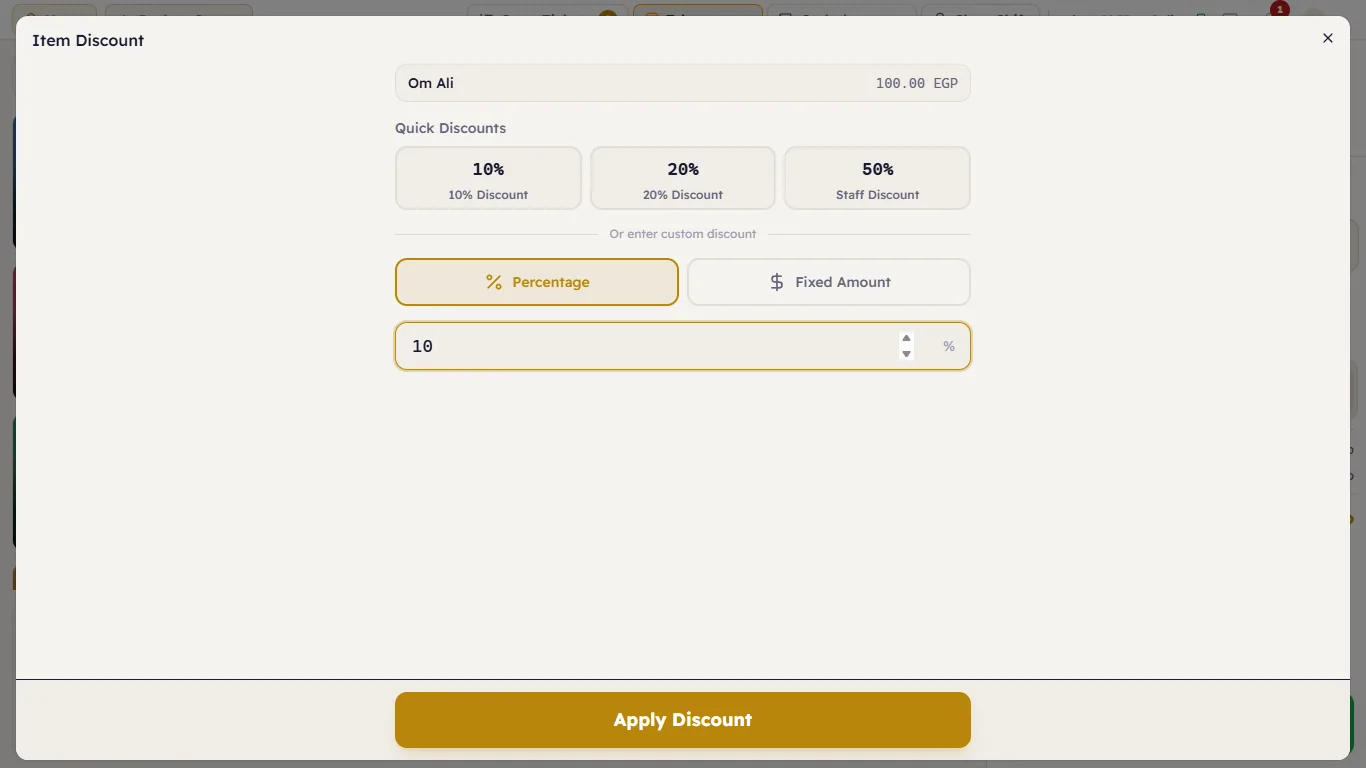
Quicker: type the number on the keypad, select the line and press % off or EGP off.
The discount shows under the item, with the old price struck through. An item discount cannot be larger than the line's price.
A discount or service charge on the whole ticket
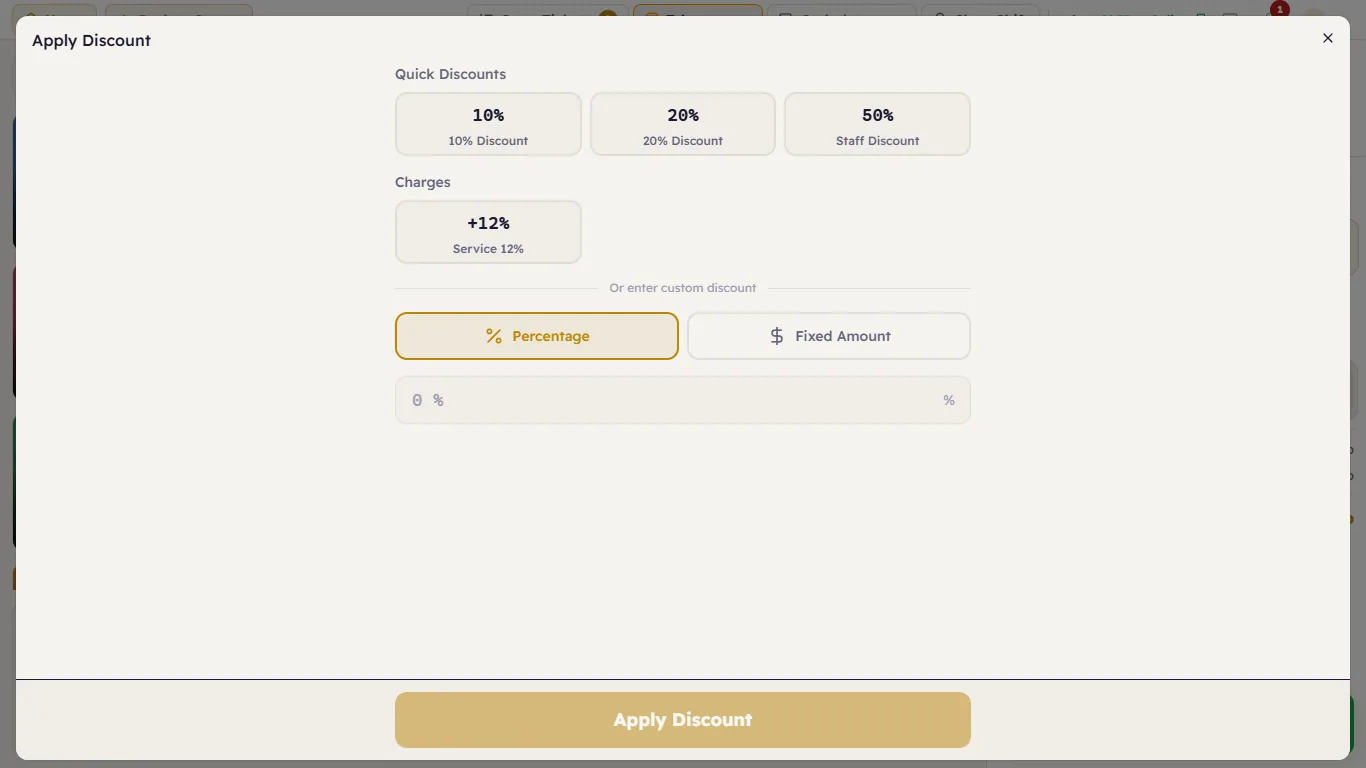
Press Apply Discount under the ticket (or Ctrl+D). You will find:
- Quick Discounts — the discounts a manager has set up (such as "10% Discount", "20% Discount", "Staff Discount"). One tap applies it.
- Charges — such as "Service 12%".
- Or enter custom discount — a percentage or amount you type yourself.
The order Major calculates in
- Discounts come off the subtotal first (an item discount inside the line's price, a ticket discount as its own line).
- The service charge is worked out on the amount after the discount.
- VAT is worked out on (subtotal − discount + service charge).
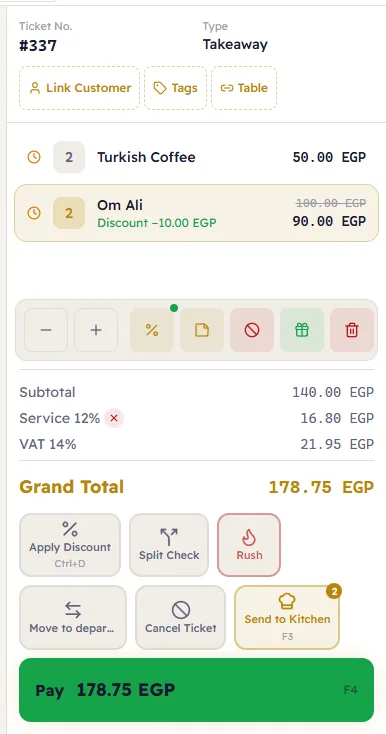
In the picture: Om Ali 2 × 50 = 100, less 10% = 90. Turkish coffee 2 × 25 = 50. Subtotal 140. Service 12% = 16.80. VAT 14% on (140 + 16.80) = 21.95. Grand Total 178.75 EGP.
Remove a discount or service charge
- On the ticket: press the red ✕ next to its line under the items.
- On an item: select the line, press Item Discount, then Remove Discount.