The Home screen and the header
How to move around Major, and what the strip at the top of the screen is telling you.
- Who can do this
- Everyone
The Home screen
The Home screen has a large button for every part of the program. Press a button to open that part.
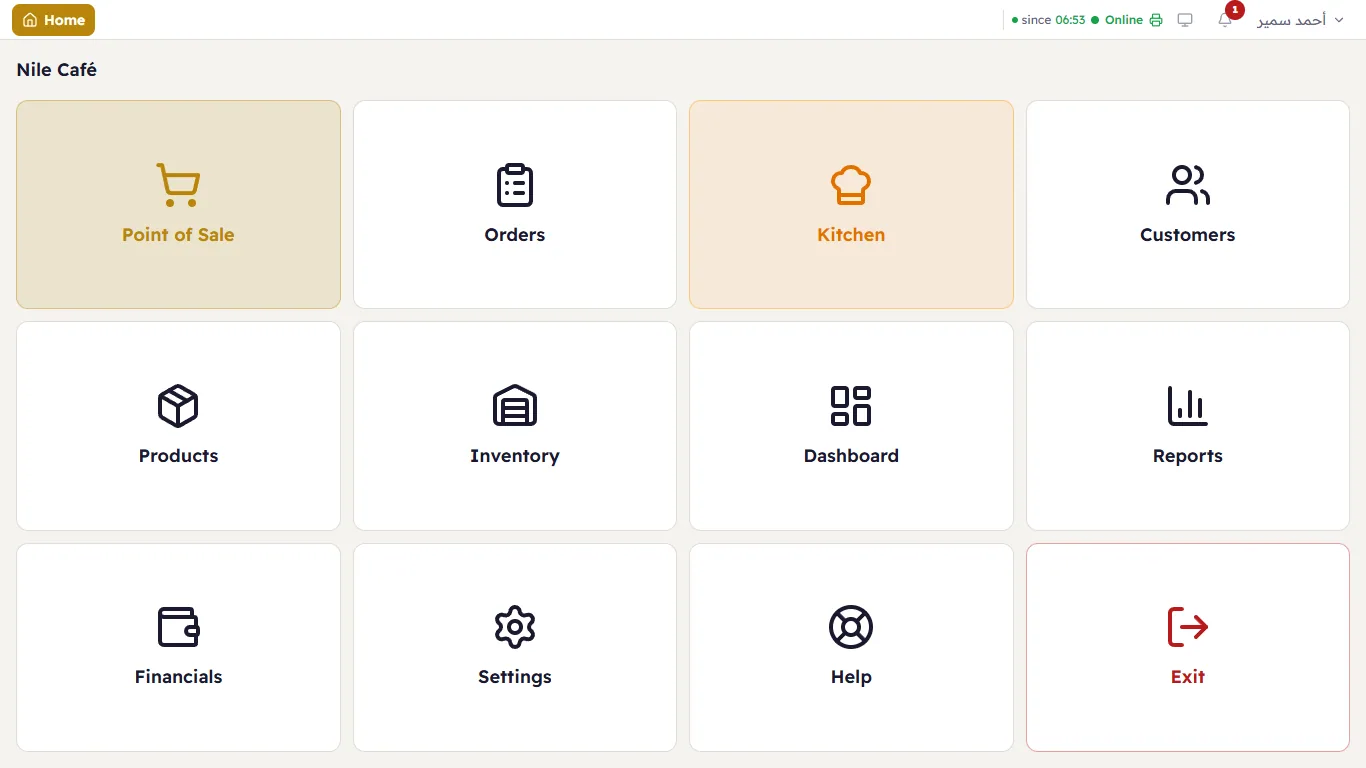
The buttons follow the shop's day: selling first (Point of Sale, Orders, Kitchen, Customers), then goods (Products, Inventory), then figures (Dashboard, Reports, Financials), and finally Settings and Help.
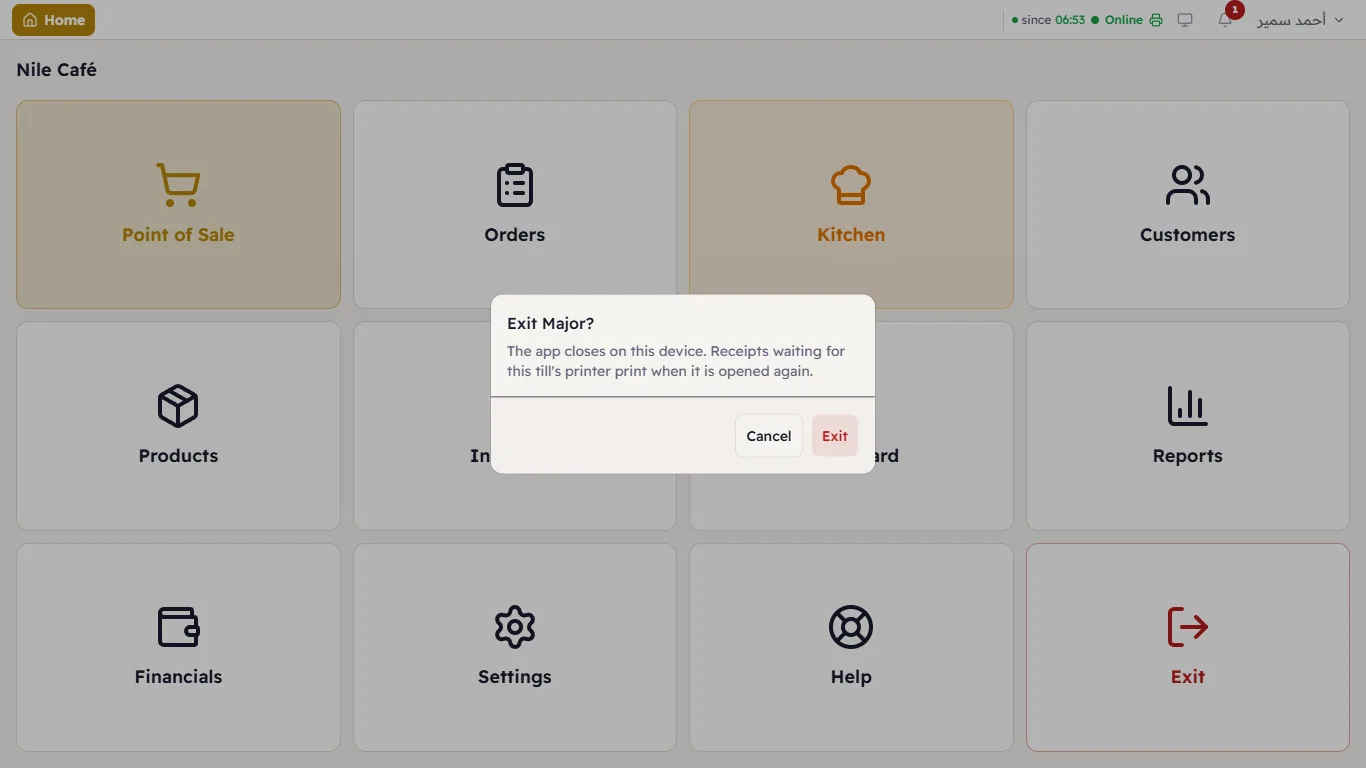
On a till (the Major app installed on the computer) there is a last button, Exit, that closes the app after asking "Exit Major?". Press Exit again to close it, or Cancel if you changed your mind. Receipts waiting for this till's printer print when the app is opened again. (When Major is open in a web browser this button is not shown — just close the tab.)
The header
The same strip sits at the top of every page, the till included.
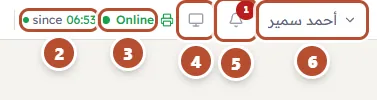
- Home (at the start of the strip, visible in the picture above) — takes you back to the Home screen from anywhere. The name of the part you are in appears next to it.
- Shift status — a green dot and "since 22:17" means a shift has been open since then. "No open shift" means nobody has opened one yet.
- Online — this device can see the server. If it turns red and says Offline, the network or the server is down (see Troubleshooting). A green printer icon next to it means printing is working.
- Customer display — opens the customer display in a new window (see Customer display).
- Notifications — the bell. The red number is how many notifications you have not read yet (see Notifications).
- Your name — opens the account menu: look, language, on-screen keyboard, change password and logout (see The account menu).
When something needs your attention, a coloured button appears in this strip, such as No receipt printer or Backup out of date. They are all explained in Warnings and coloured bars.
The header on the till
On the till, the header also carries the cashier's buttons: Open Tickets with their count, the department button (for example Dine-In), Cash drawer (Cash In and Cash Out) and Close Shift.

Jump buttons
Some pages have buttons that take you straight to another part without going back to Home. From the till you can go to Customers or Products; from Orders, Customers and Products a button takes you back to Point of Sale.
On smaller screens
On a smaller screen (a tablet, say) the words next to the icons disappear and the icons stay. On an even smaller screen, the shift status, printer, customer display and bell move inside the More (⋯) button, which opens on a summary of the shift, connection and printer. A red dot on ⋯ means there is an unread notification.
Which screen opens when you sign in?
When you sign in, Major opens:
- the screen the owner chose for you, if they chose one (for example the kitchen display for the kitchen PC, or Orders); or
- automatically: the kitchen display if your account is for the kitchen only, otherwise the till.
The owner picks this screen for each person in Users (the startup screen).