Changing items on the ticket
Change the quantity, add a note, discount, gift, void or remove an item on the ticket.
- Who can do this
- Cashier Waiter Manager Owner
- Permission needed
- «Open Ticket»
Tap any line on the ticket to select it (it changes colour), and a row of buttons for that line appears under the items:
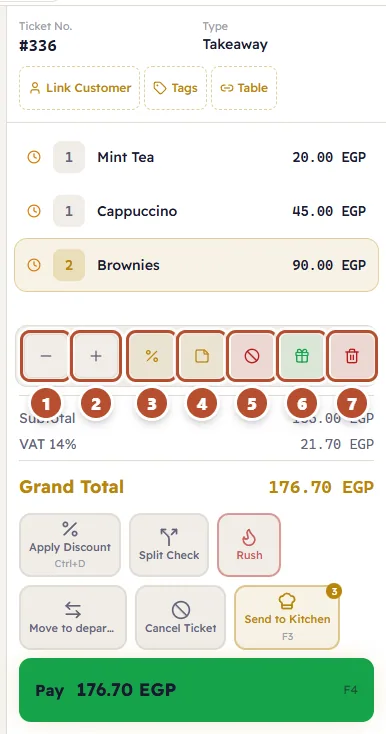
- − "Decrease quantity" — lowers the quantity by one (down to 1).
- + "Increase quantity" — raises the quantity by one.
- % Item Discount — a discount on this line only (see Discounts).
- Add Note — a note for the kitchen on this item.
- Void — cancels the item but keeps it on record, with a reason.
- Gift — the item becomes free, with a reason.
- Remove Order Line — removes the line completely.
A note on an item
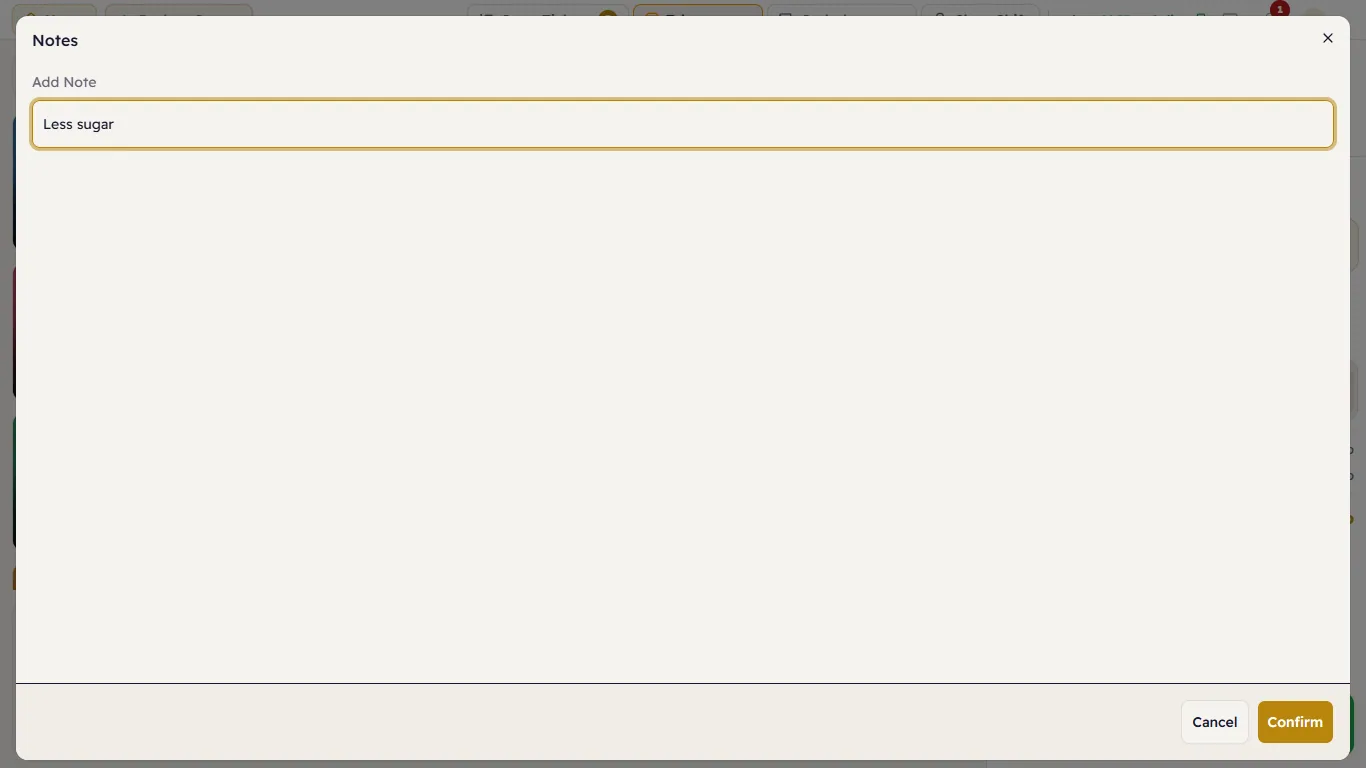
Select the line, press Add Note, type the note (for example "Less sugar") and press Confirm. The note shows under the item's name on the ticket, on the kitchen display and on the kitchen ticket.
Void an item
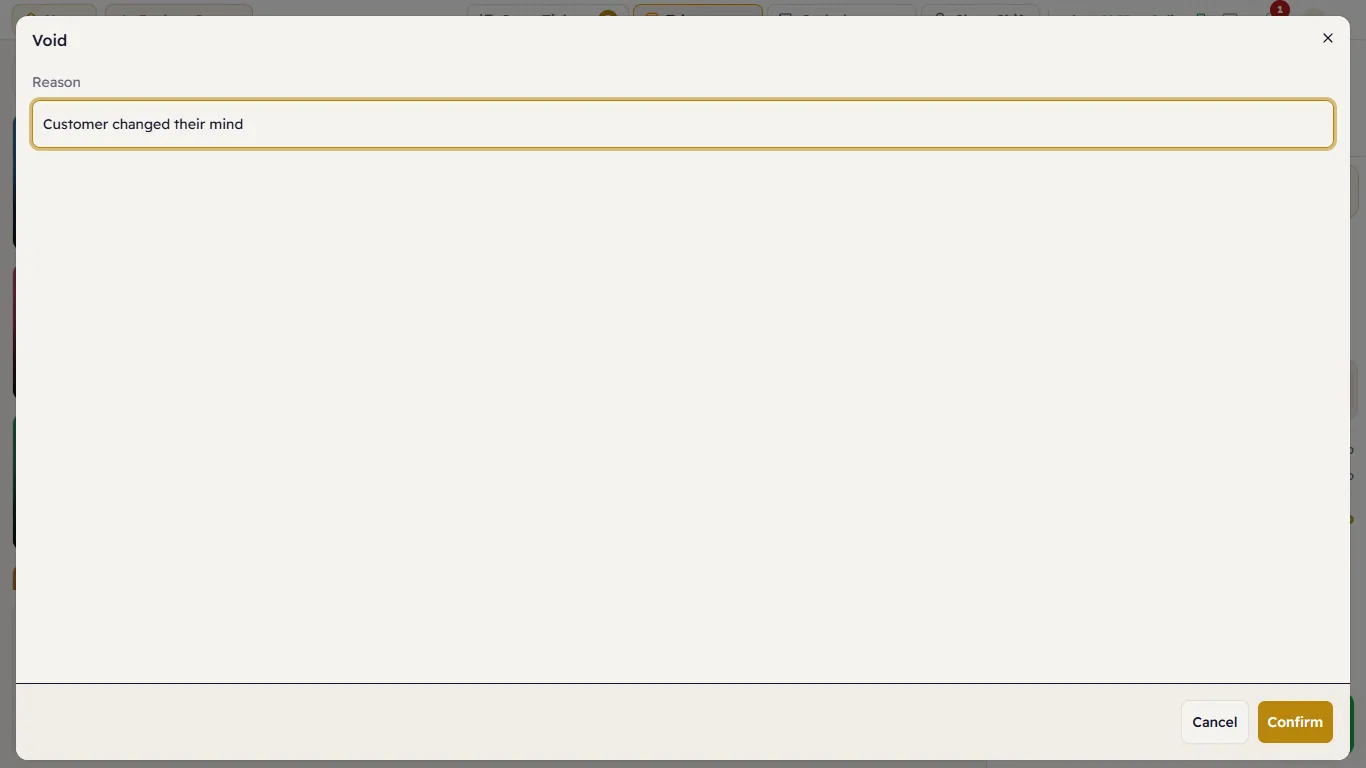
If the customer changes their mind after the item was rung up (or sent to the kitchen), use Void, type the Reason and press Confirm. The item stays on the ticket, struck through, at zero, and the void is recorded under your name with the reason — so a manager can review it.
Gift an item
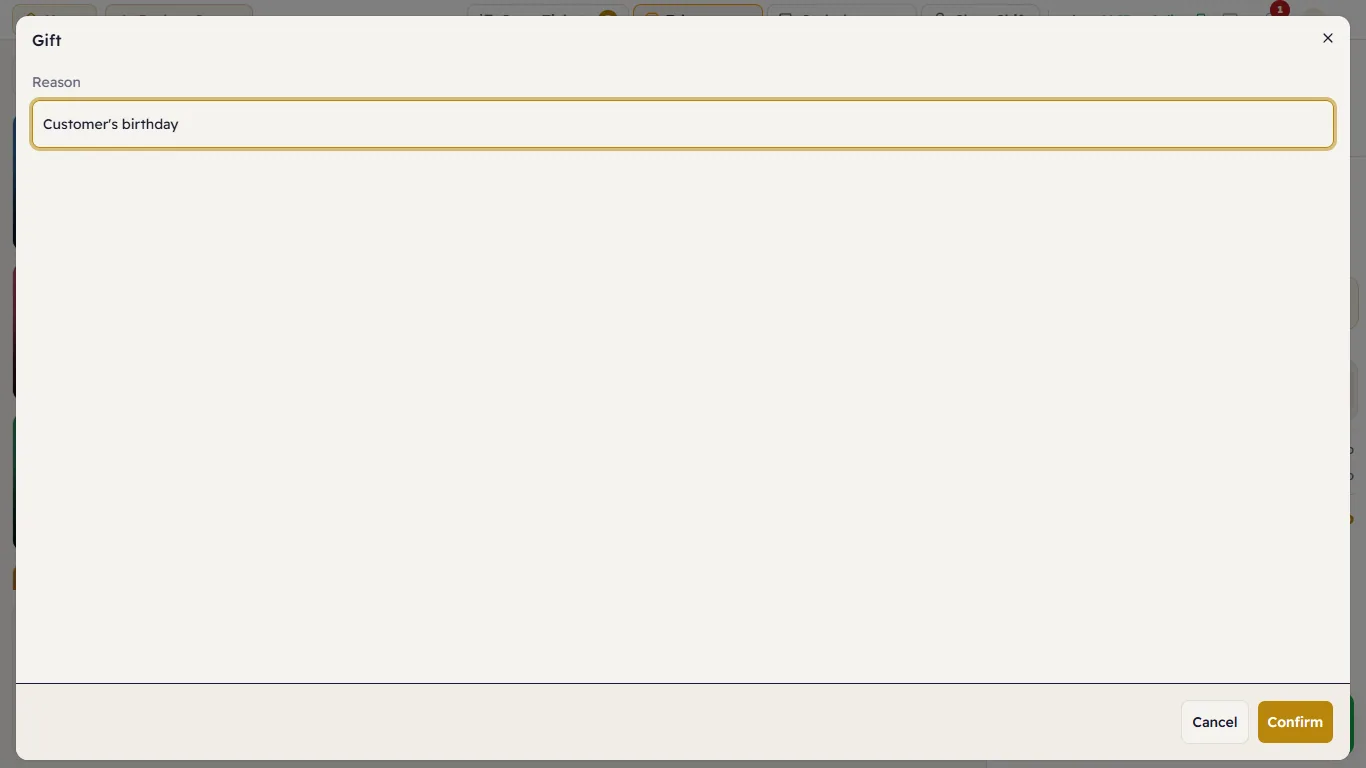
Gift makes the item free for the customer (a birthday treat, say). Type the reason and press Confirm. The item stays on the ticket at zero, in green, and stock is deducted as usual.
Remove an item
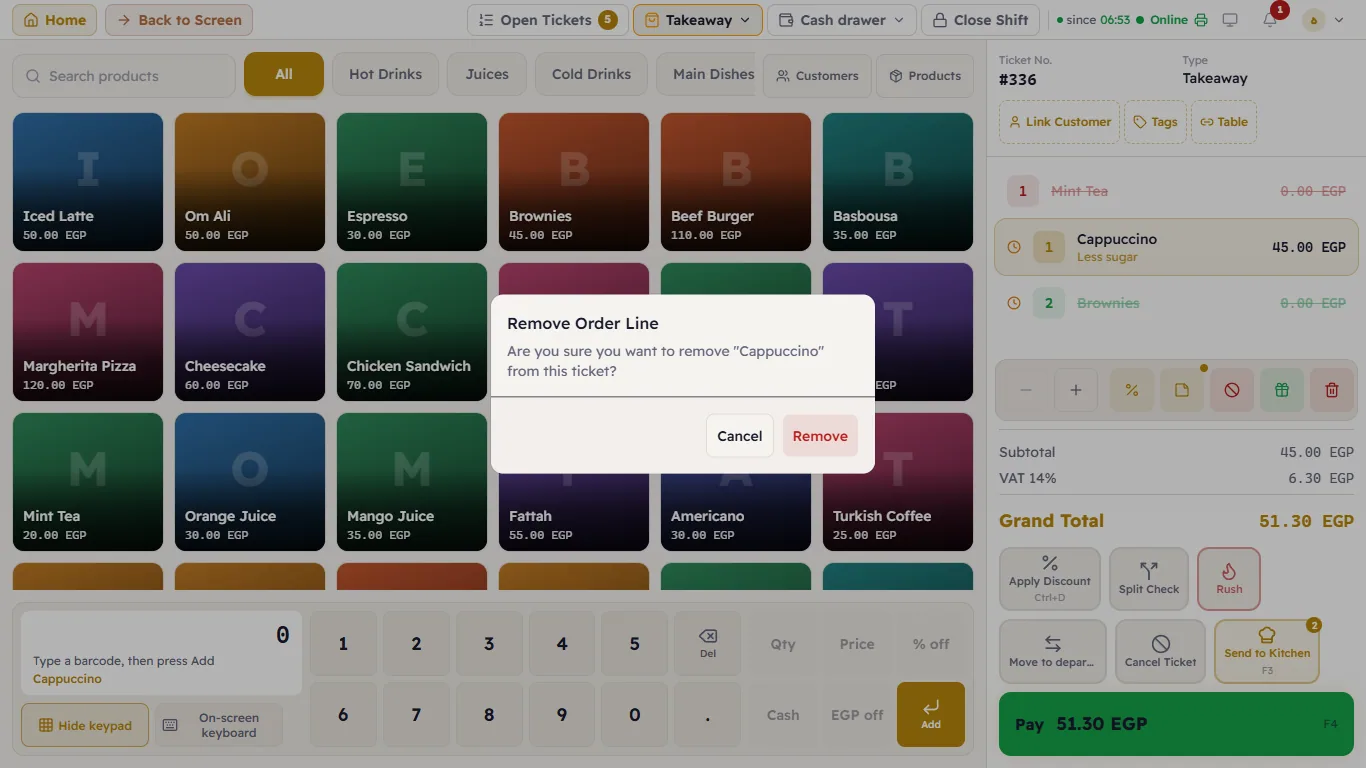
Remove Order Line takes the line off the ticket as if it was never rung — for mistakes (you tapped the wrong item). Major asks first: "Are you sure you want to remove "…" from this ticket?".
The result
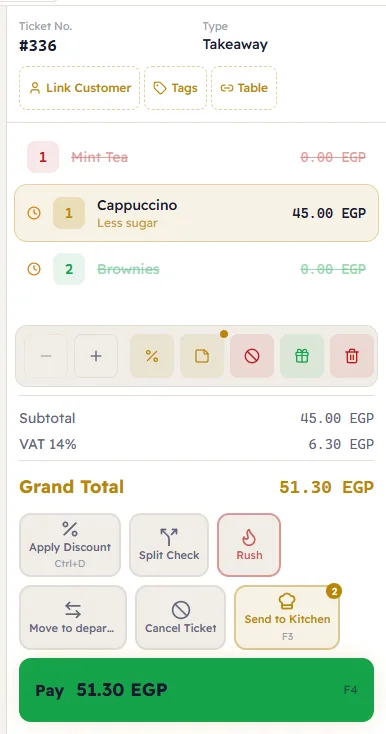
The tea is voided (red), the brownies are a gift (green) and the cappuccino carries the note "Less sugar". The total covers only what was actually sold.