Staff (users)
Create an account for each person, set their role, branch, departments and startup screen, and deactivate them when they leave.
- Who can do this
- Owner
- Permission needed
- «Manage Users»
Everyone needs their own account. Settings → Users & Roles → Users:
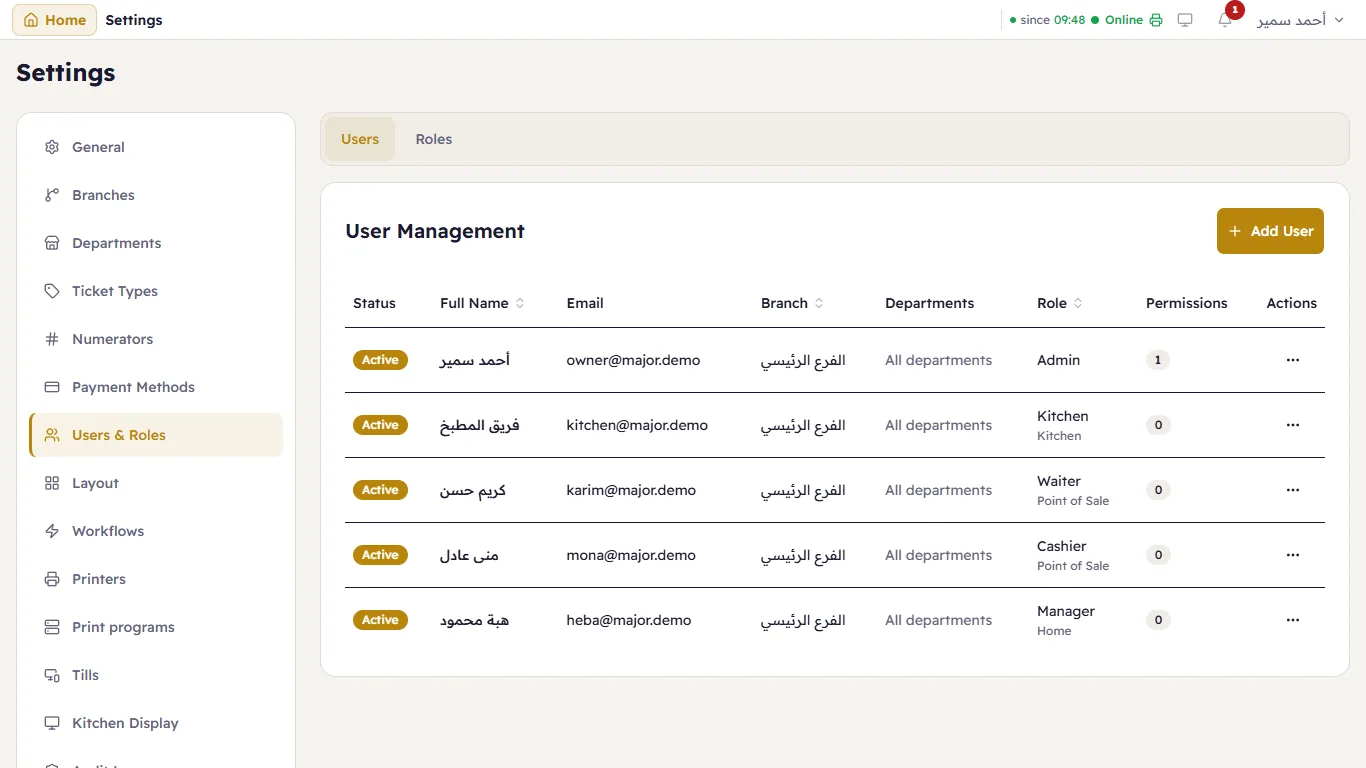
The table shows, for each person: status, Full Name, Email (what they sign in with), Branch, Departments ("All departments" when not restricted), Role with the startup screen under it, and the number of direct Permissions. Press a person's name (or anywhere on the row) to edit them; ⋯ holds edit, deactivate and activate. On a phone or a narrow tablet the same list shows one card per person; press the card to edit, ⋯ for the rest, and Sort by to order the cards as the table's headers do.
Add a person
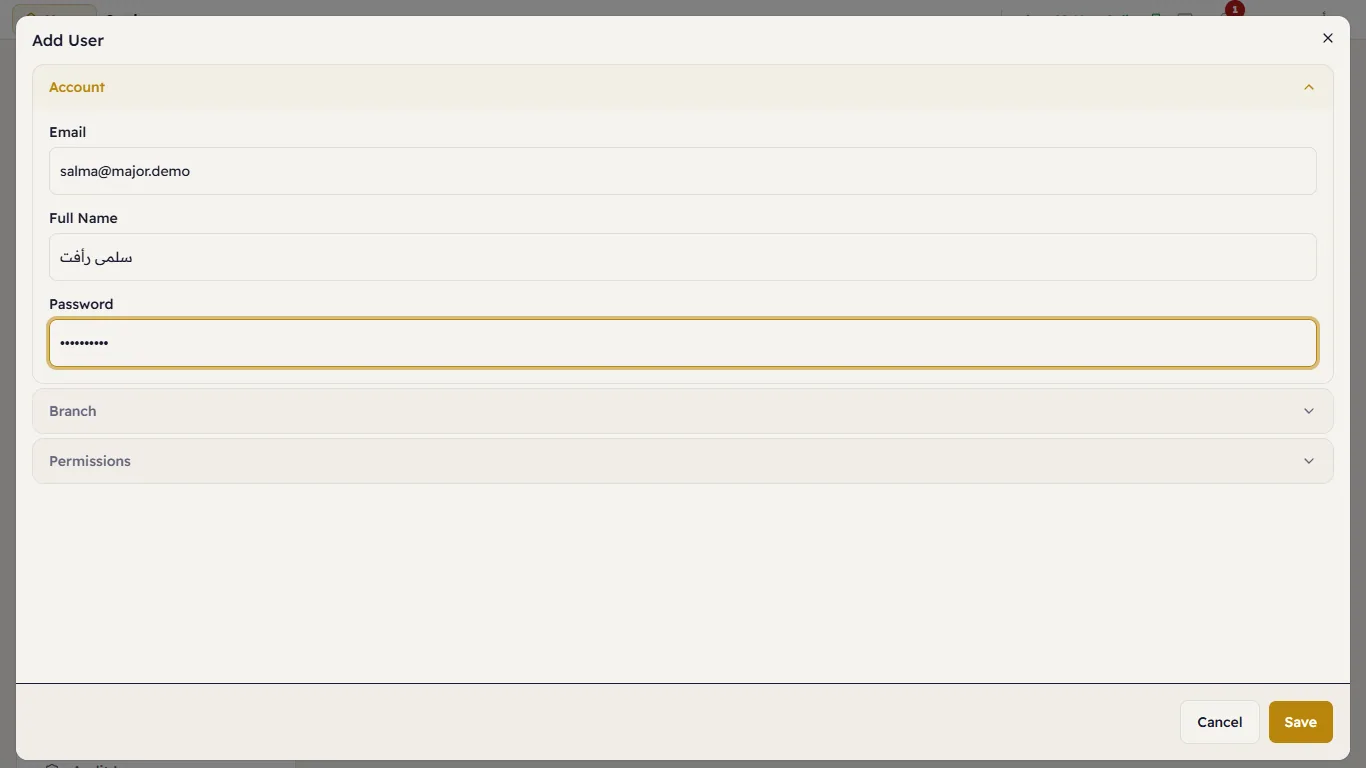
Press Add User. The window has three sections, one open at a time:
Account — Email, Full Name and Password (at least 8 characters with a digit). Give it to the person and have them change it from the account menu.
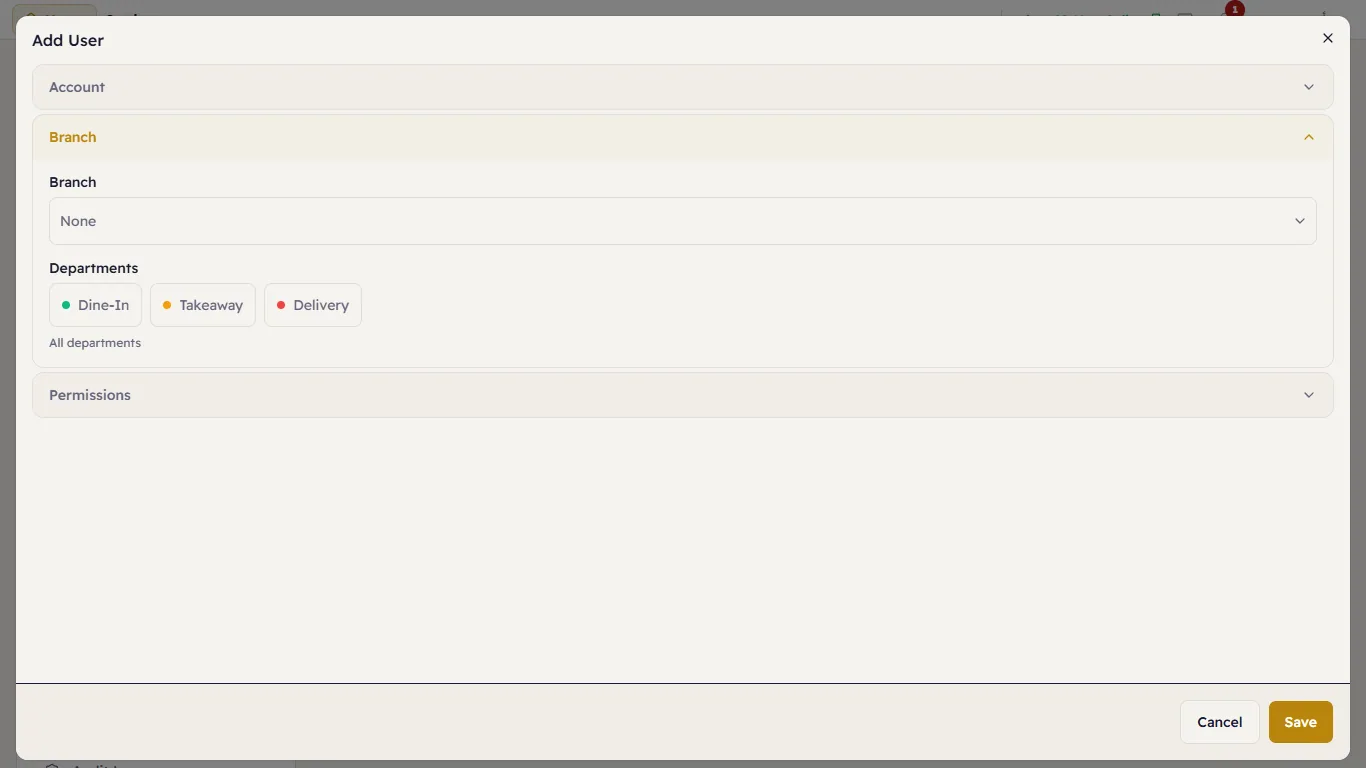
Branch — the branch they work in, and the Departments they may use. "Leave every department unselected so the user works in all of them. Picking any limits them to the ones picked." (a waiter for the dining hall only, say).
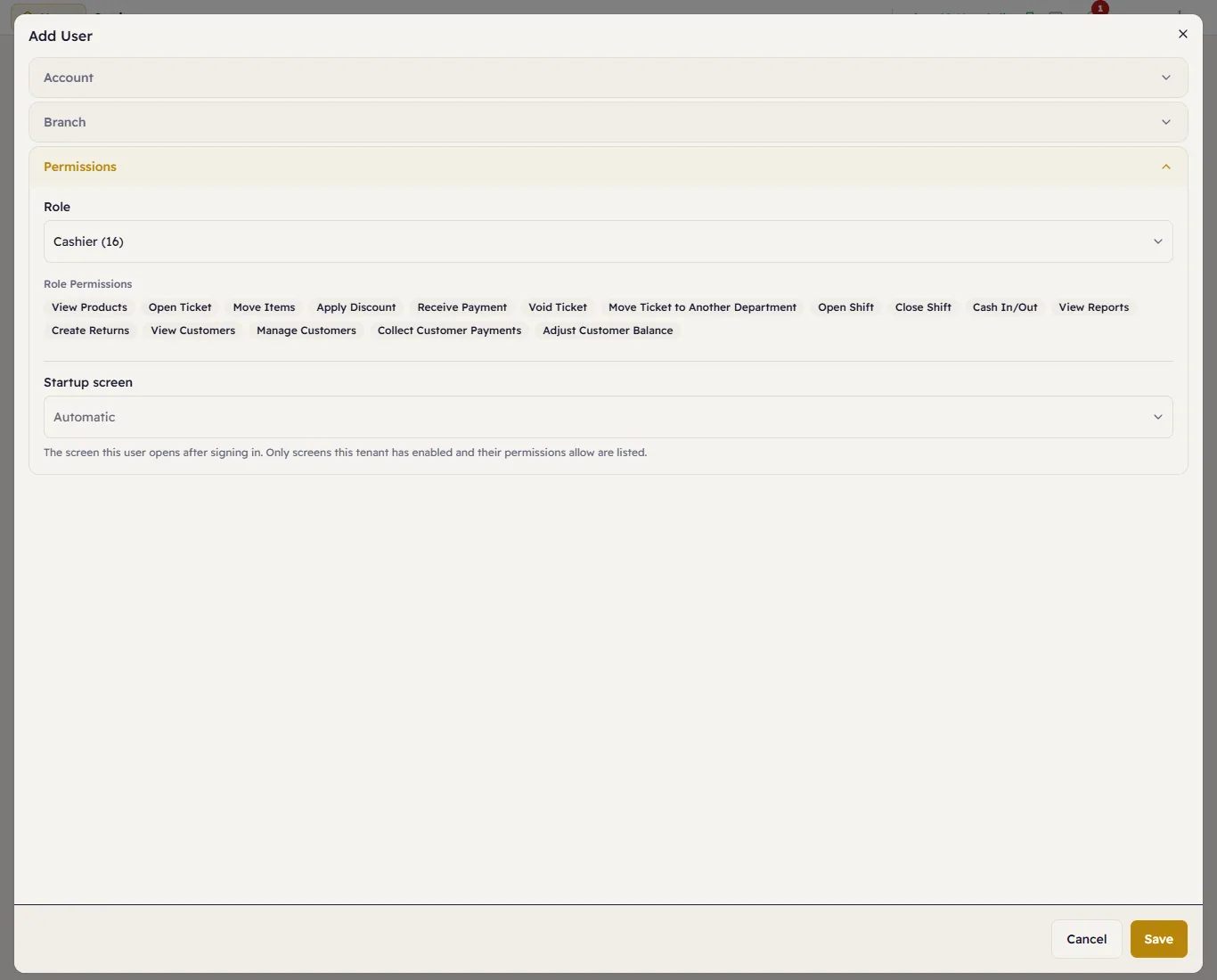
Permissions — choose the Role (Cashier, Manager, …) and its Role Permissions appear below. Or choose Custom (no role) and pick the permissions yourself. Under it, the Startup screen: the screen that opens after they sign in — Automatic, or a specific screen (the kitchen display for the kitchen PC, or Orders, say).
Press Save.
Edit or deactivate a person
… next to the person → Edit User or Deactivate User. Deactivate someone who left, don't delete them — their account is locked and signed out everywhere, but everything they did stays recorded under their name in reports and the Audit log. Bring them back with Activate User.
Forgot their password?
Major has no "forgot password". The owner opens Edit User and sets a new password.