Printers
Add a receipt or kitchen printer, choose how it prints, and test it.
- Who can do this
- Owner
- Permission needed
- «Manage Settings»
Settings → Printers has four tabs: Printers, Category routing (Kitchen routing), Templates (Receipt templates) and Print Job History.
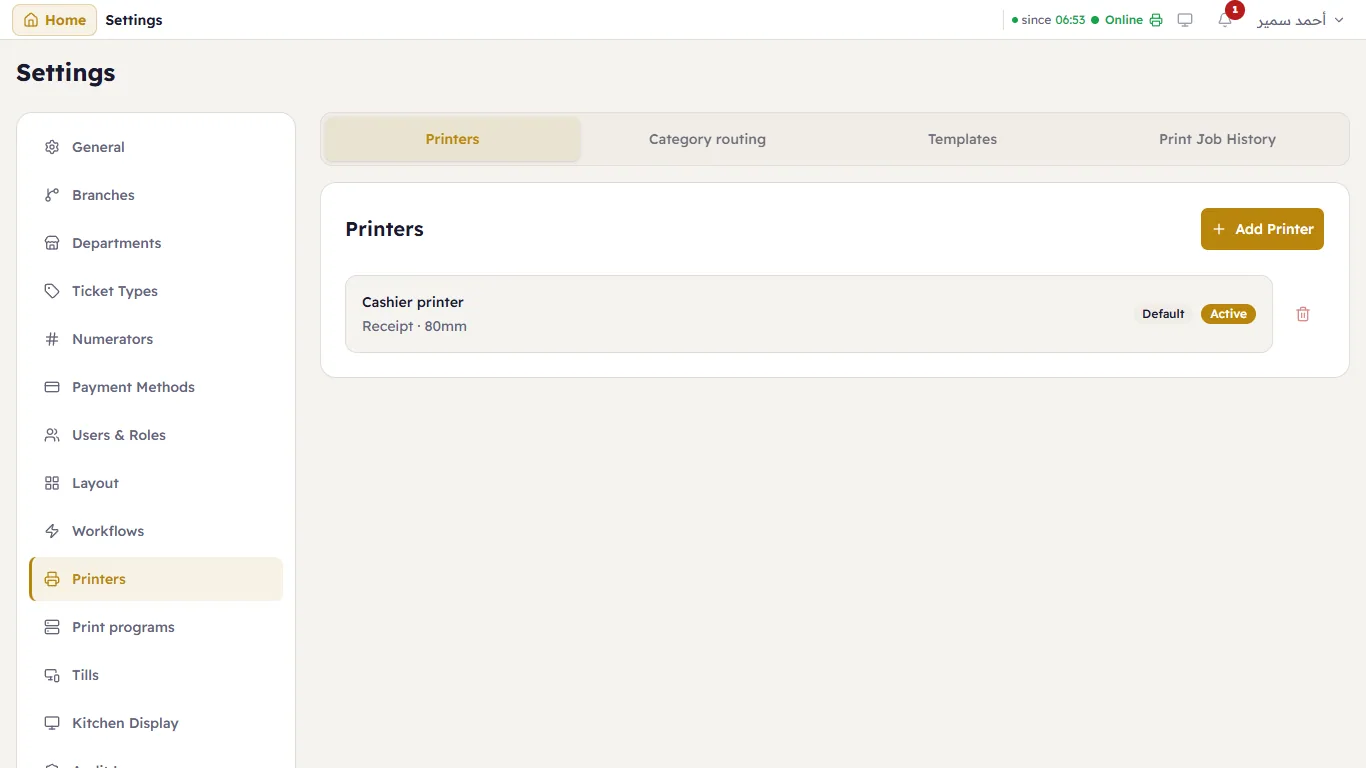
Add a printer
Plug the printer into the PC that will print on it and install its Windows driver first. Then Add Printer:
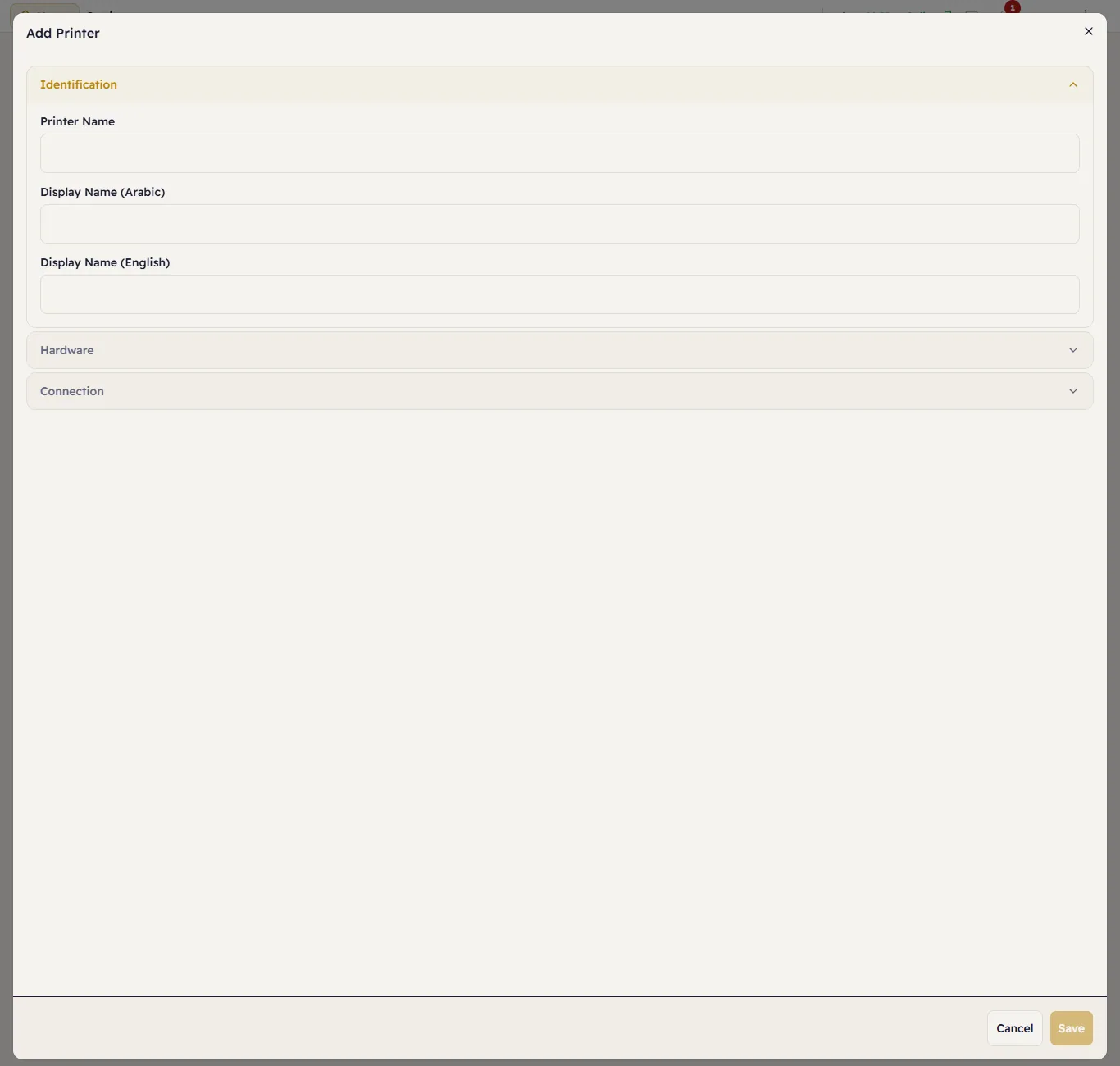
Identification — the Printer Name and its names in Arabic and English.
Hardware — the Printer Type (Receipt, Kitchen, Label), the Paper Width (58 or 80 mm), Has Cutter and Cash Drawer (the drawer opens when a receipt prints).
Connection:
- Prints through — which PC the printer is plugged into: a till, or the server. See Print programs.
- Choose the printer — the Windows printers that PC found.
- Print Mode:
| Mode | Use |
|---|---|
| Raw (thermal/ESC-POS) | Thermal receipt printers — the fastest, and the cutter and drawer work. |
| Driver (any printer) | Any printer with a Windows driver (an office printer, a label printer). |
| File (testing — saves to disk) | Testing without paper: each print is saved as a picture in a folder. |
Press Save, then Test Print to check it.
A till with a printer plugged in also gets Set up this PC's printer under Tills, which fills these fields from what that PC found.
Print job history
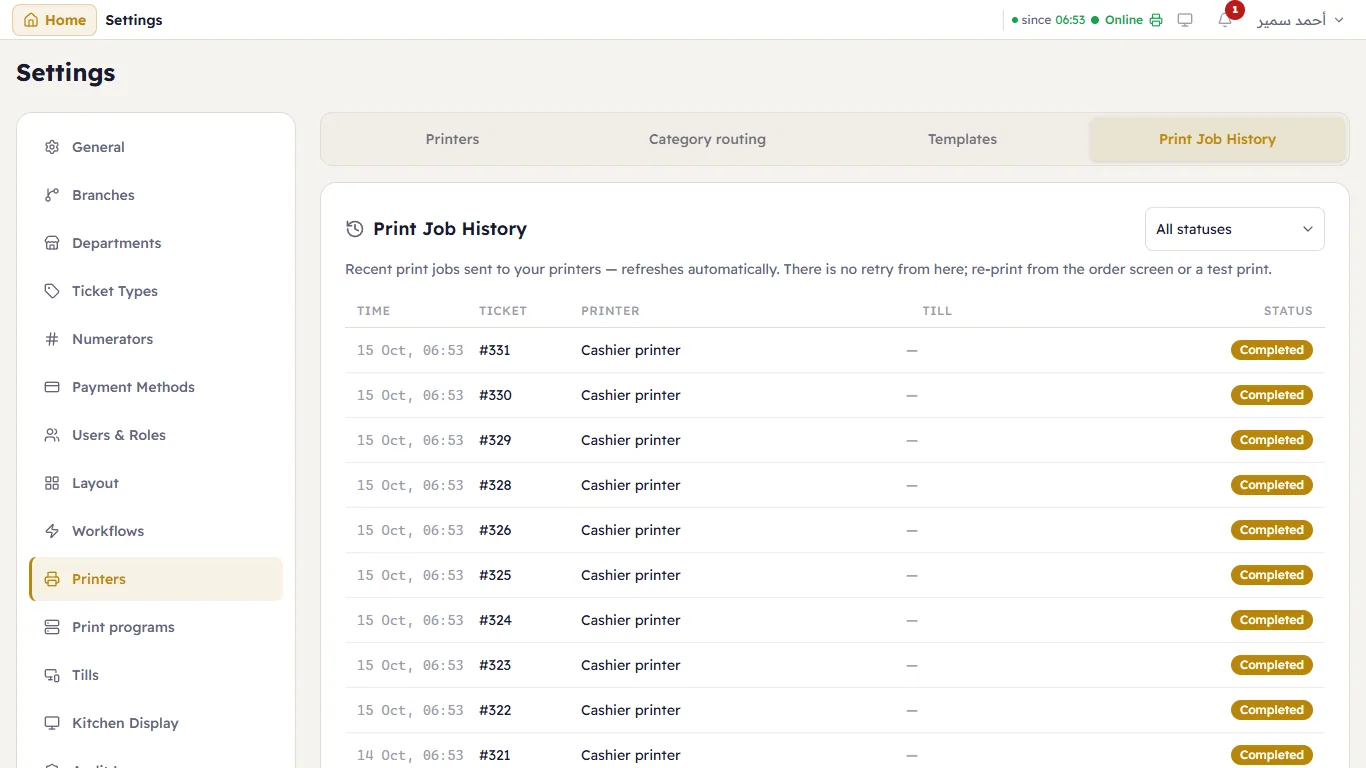
Every print: the time, the ticket, the printer, the till that sent it and the status — printed, waiting or failed. A receipt waiting for a till that is switched off prints as soon as it comes back.