Send the order to the kitchen
Send the new items to the kitchen display and the kitchen printer.
- Who can do this
- Waiter Cashier Manager Owner
- Permission needed
- «Open Ticket»
- Before you start
- The shop has a kitchen display or a kitchen printer.
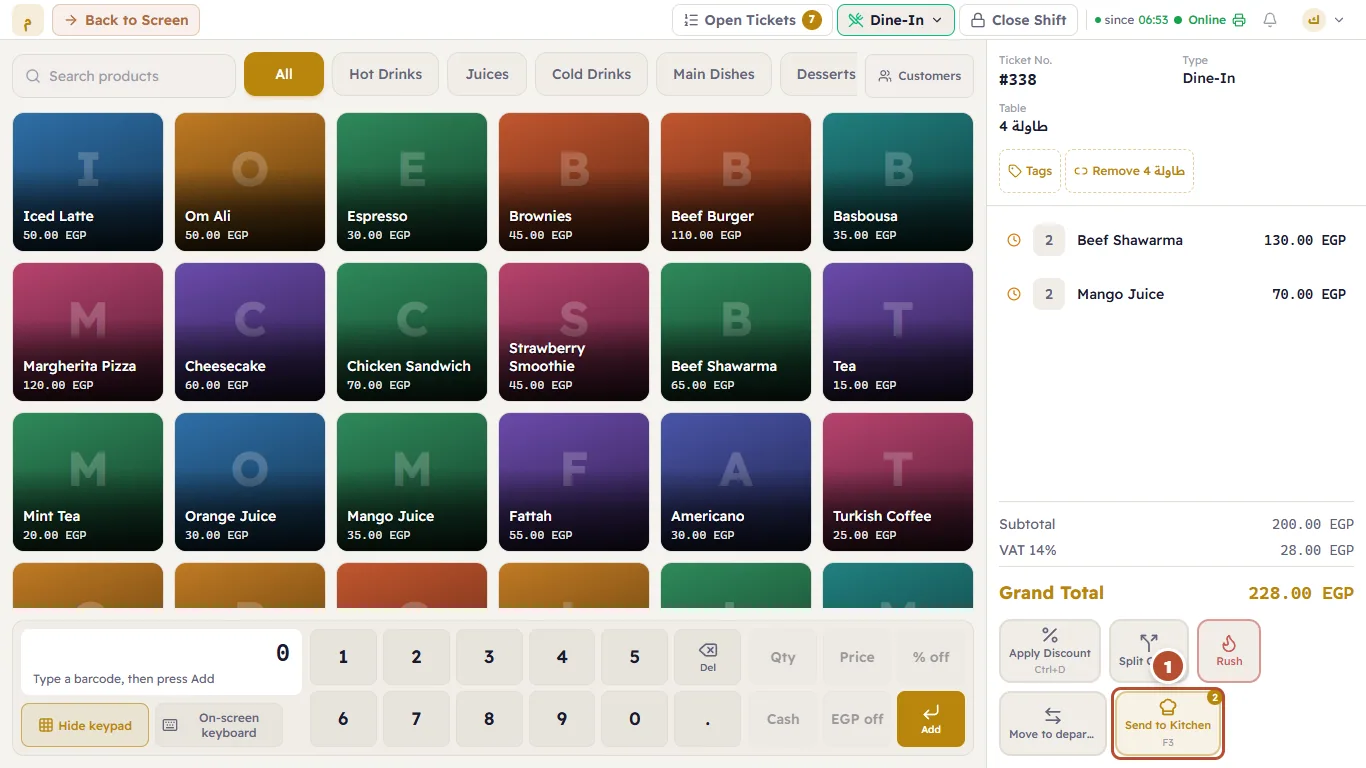
The items you add stay "Held — not sent to kitchen yet" (a clock icon next to them) until you send them. That gives you a chance to change the order before the kitchen starts.
- Add all the items.
- Press Send to Kitchen (1) or F3. The number on the button is how many items have not been sent yet.
After sending
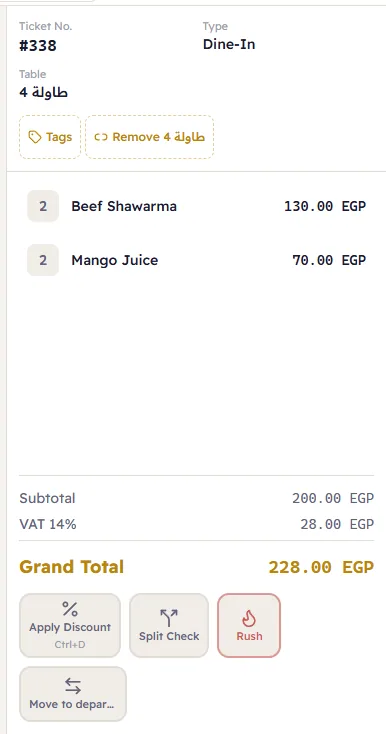
- Add new items and send again — the kitchen receives only the new ones.
- A sent item's quantity cannot change — the kitchen works from the printed ticket. If the customer cancels an item, use Void with a reason (Changing items on the ticket).
- Rush makes the order show as urgent on the kitchen display.