Status groups (delivery stages and more)
Give tickets stages of your own beside their money state — new, ready, out for delivery, delivered — and choose the ticket types they apply to.
- Who can do this
- Owner Manager
- Permission needed
- «Manage Settings»
- Before you start
- At least one ticket type (such as Delivery).
Every ticket has a fixed money state that Major runs by itself (new, open, paid, closed, voided). Beside it you can add statuses of your own in a status group — delivery stages, for example: new → ready → out for delivery → delivered. Each group applies to the ticket types you choose, and its statuses show on the ticket at the till, on the Orders page and on the status board.
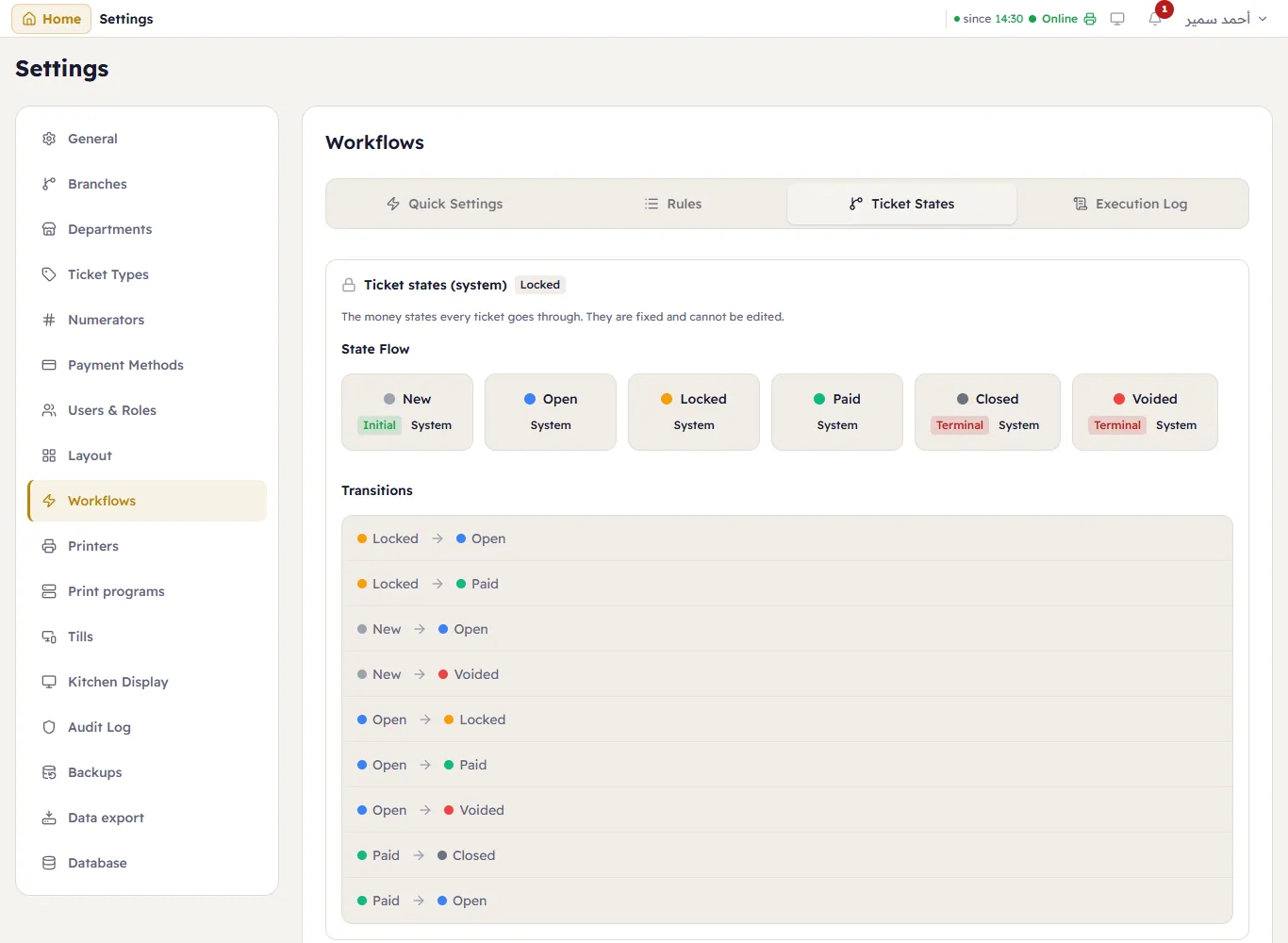
Groups live in Settings → Workflows → the Ticket States tab. At the top is the Ticket states (system) card, marked Locked: "The money states every ticket goes through. They are fixed and cannot be edited." Under it, Status groups: one card per group, with the ticket types it applies to and its statuses in their colours.
Create a group
- Press Add status group. New status group opens.
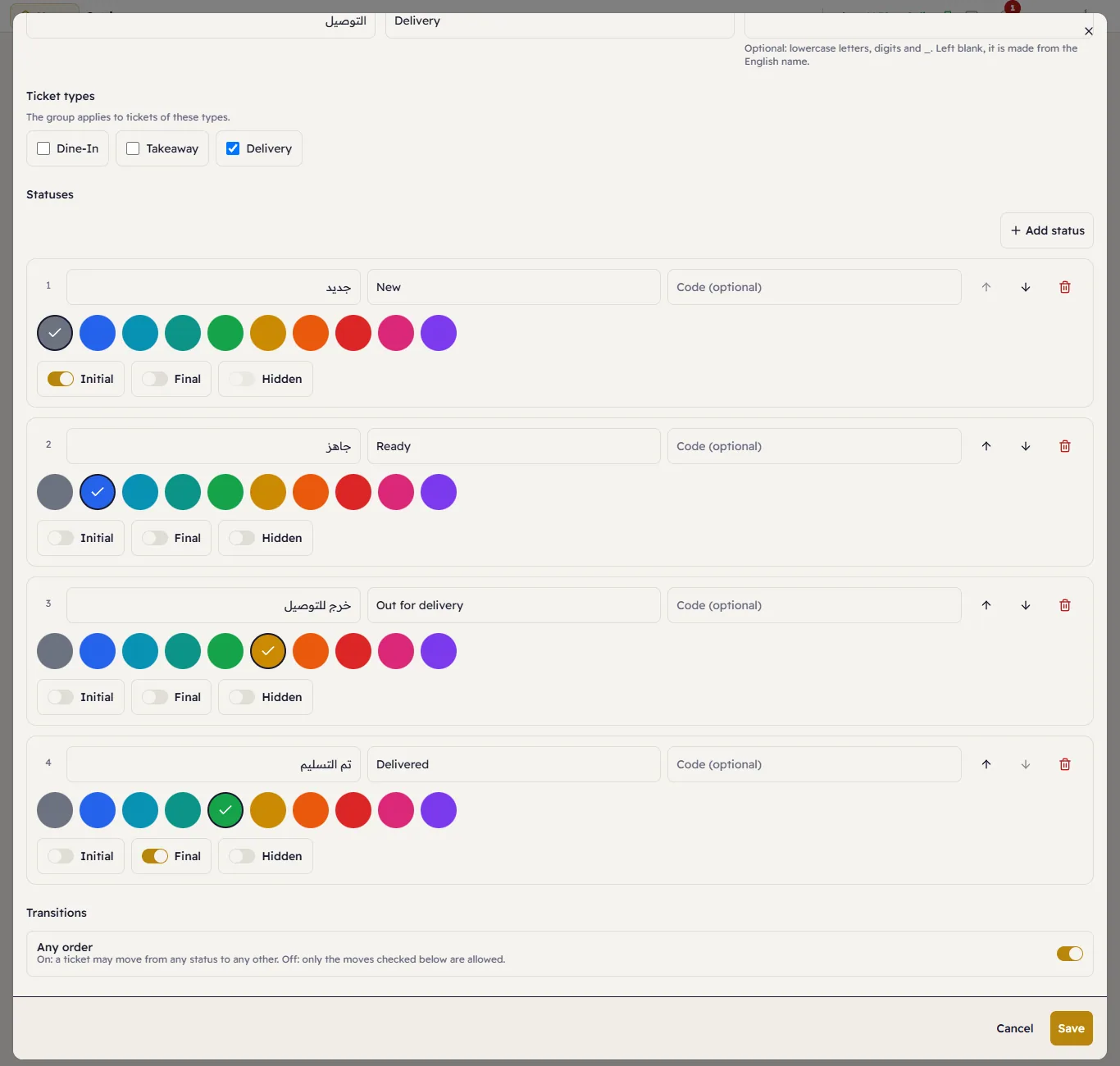
- Type the Arabic name and the English name. The Code is "Optional: lowercase letters, digits and _. Left blank, it is made from the English name."
- Under Ticket types, tick at least one type — Delivery, say. The group shows only on tickets of those types.
- Under Statuses, add the stages in order with Add status: each has an Arabic and an English name, an optional code and one of ten colours. Reorder them with Move up and Move down.
- Press Save.
Each status's switches
- Initial — the status every new ticket of the chosen types starts at; exactly one per group. When you save, tickets of those types that are still open take it too. Tickets closed before the group existed stay at No status.
- Final — the last stage (delivered, say). Its tickets stay in their column on the board until the business day ends, and rules can check for it.
- Hidden — the status leaves the buttons and the choices, but still shows on the tickets that hold it and in their history. "The initial status cannot be hidden."
The order of moves
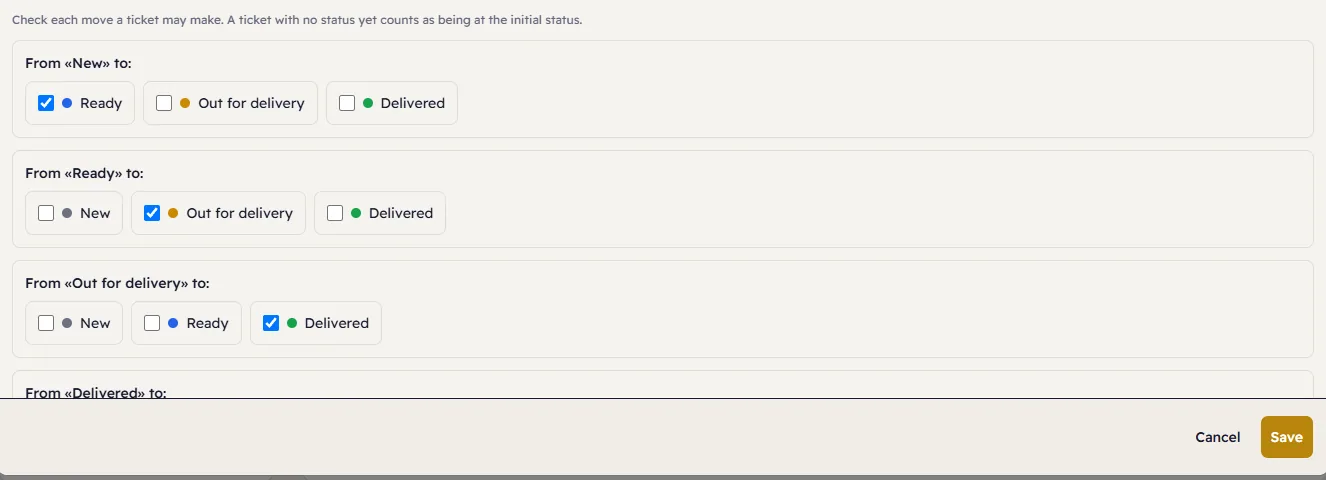
Under Transitions, the Any order switch decides what is allowed: "On: a ticket may move from any status to any other. Off: only the moves checked below are allowed."
With it off, each status gets a list — "From «New» to:", for example — with a box for every status a ticket may move to. "Check each move a ticket may make. A ticket with no status yet counts as being at the initial status."
Hide or delete
- A group no ticket has used: it shows Delete, and Major asks "Delete this status group?" before deleting it for good.
- A group tickets have used: there is no Delete, only Hide group: "Tickets have used this group, so it can only be hidden: it leaves the till, the lists and the board, and its history is kept. You can show it again." Show group brings it back, and the open tickets of its types then take the initial status.
- A saved status in a used group: the editor gives it no remove button — "Tickets have used this group: a saved status can be hidden, not removed." Use its Hidden switch instead.
Trying to delete anyway from another till gives this message or this one.
Statuses in rules
Rules can move a ticket from one status to another by themselves, or run when a status changes:
- Two events: Ticket Status Changed (on every real change of one of your statuses, not on the initial one) and Kitchen Order Ready (when every kitchen station has finished the ticket).
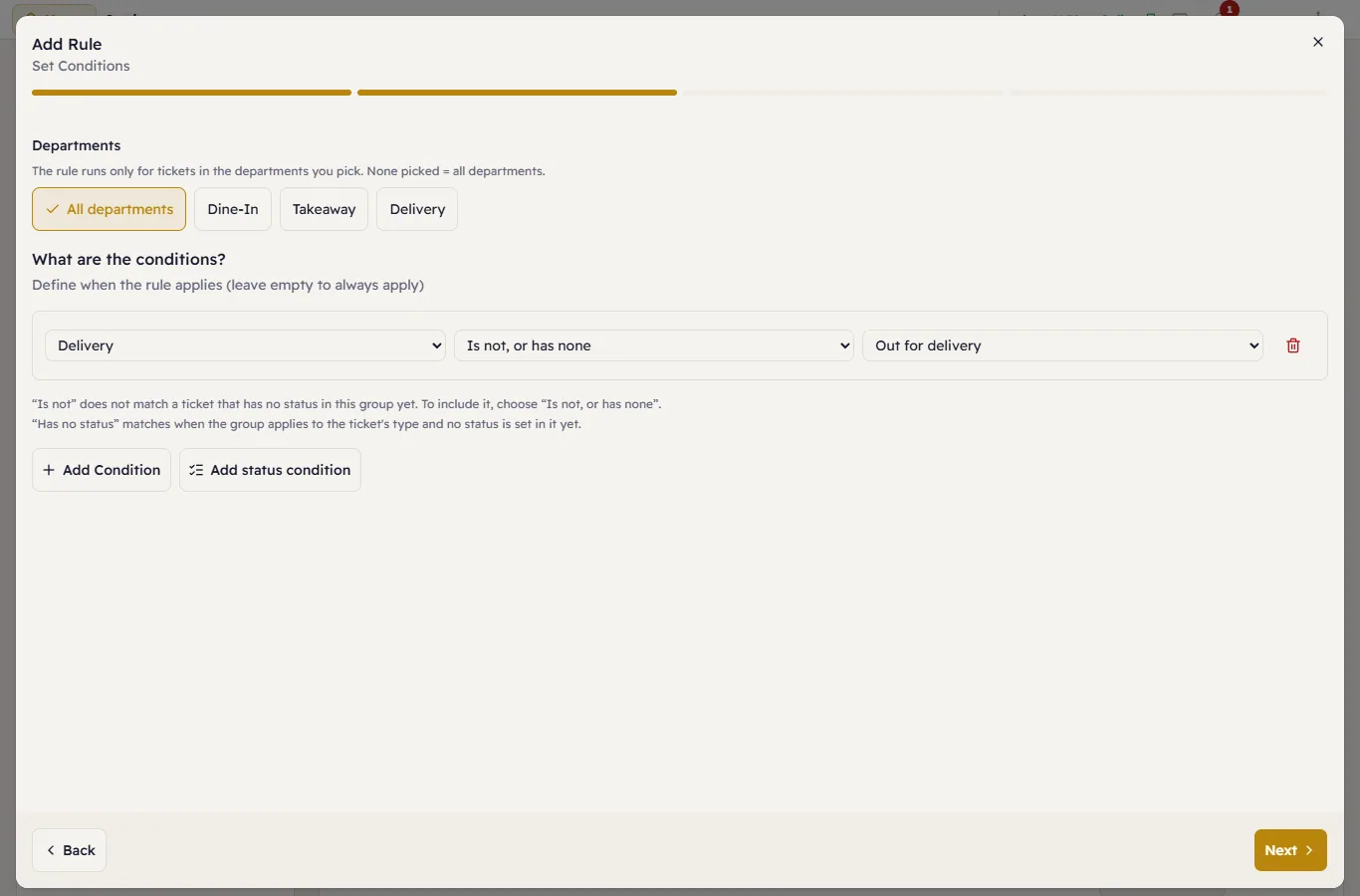
- A status condition: at What are the conditions? press Add status condition (offered for events that carry a ticket, once at least one group exists), then choose the Status group and the Condition — Is, Is not, Is not, or has none or Has no status — then the Status.
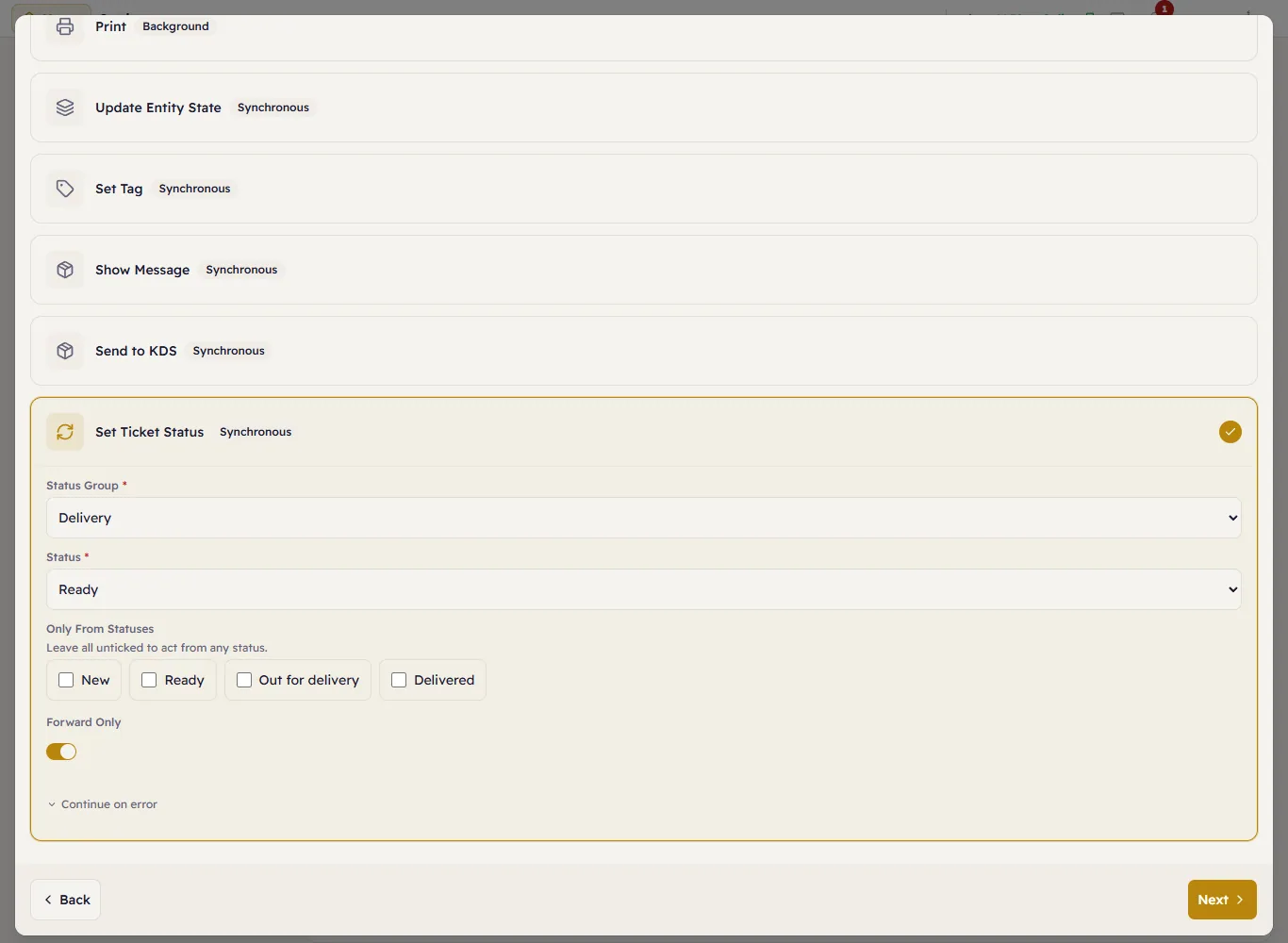
- The Set Ticket Status action: at What happens? choose the Status Group, then the Status the ticket
moves to. It has two options:
- Only From Statuses — the action runs only when the ticket is at one of the ticked statuses. "Leave all unticked to act from any status."
- Forward Only — the action skips a ticket whose current status is the target or one after it in the order, so a ticket never moves backwards. Example: a rule Kitchen Order Ready → Set Ticket Status (Delivery, Ready) with Forward Only: if the order went out for delivery and was then recalled and bumped again in the kitchen, it stays at out for delivery.
When the move is not allowed by the Transitions, or one of the options rules it out, the action skips the ticket without an error; the Execution Log says why. An old rule that carries a status action in an earlier form shows Old, invalid action: "Choose a status group and a status to fix it, or deselect the action to remove it."