The setup wizard
Five steps after the owner account — your kind of shop, its details, its colour, and whether to start with sample products.
- Who can do this
- Owner
1. Your kind of shop
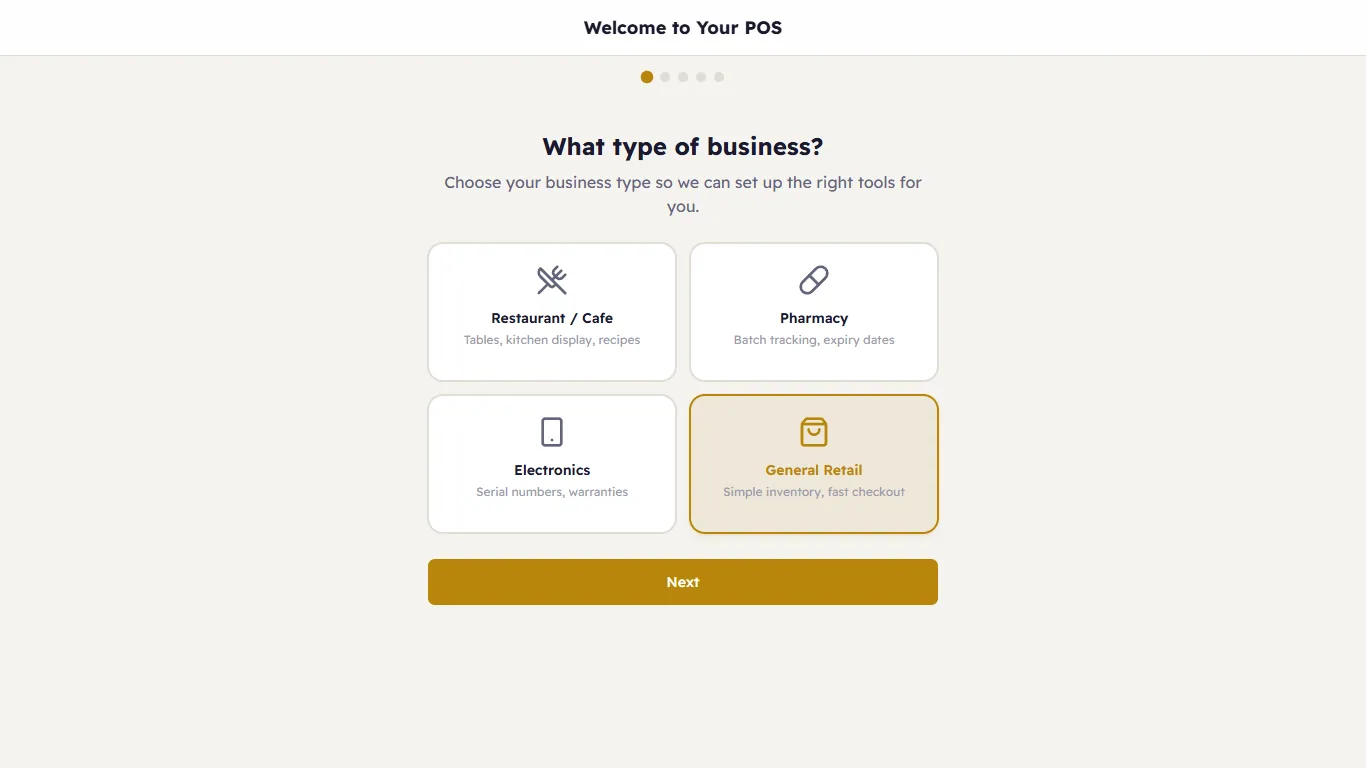
Restaurant / Cafe (tables, kitchen display, recipes), Pharmacy (batch tracking, expiry dates), Electronics (serial numbers, warranties) or General Retail (simple inventory, fast checkout). It decides the sample data and which screens are switched on. You can switch screens on or off later.
2. Business information
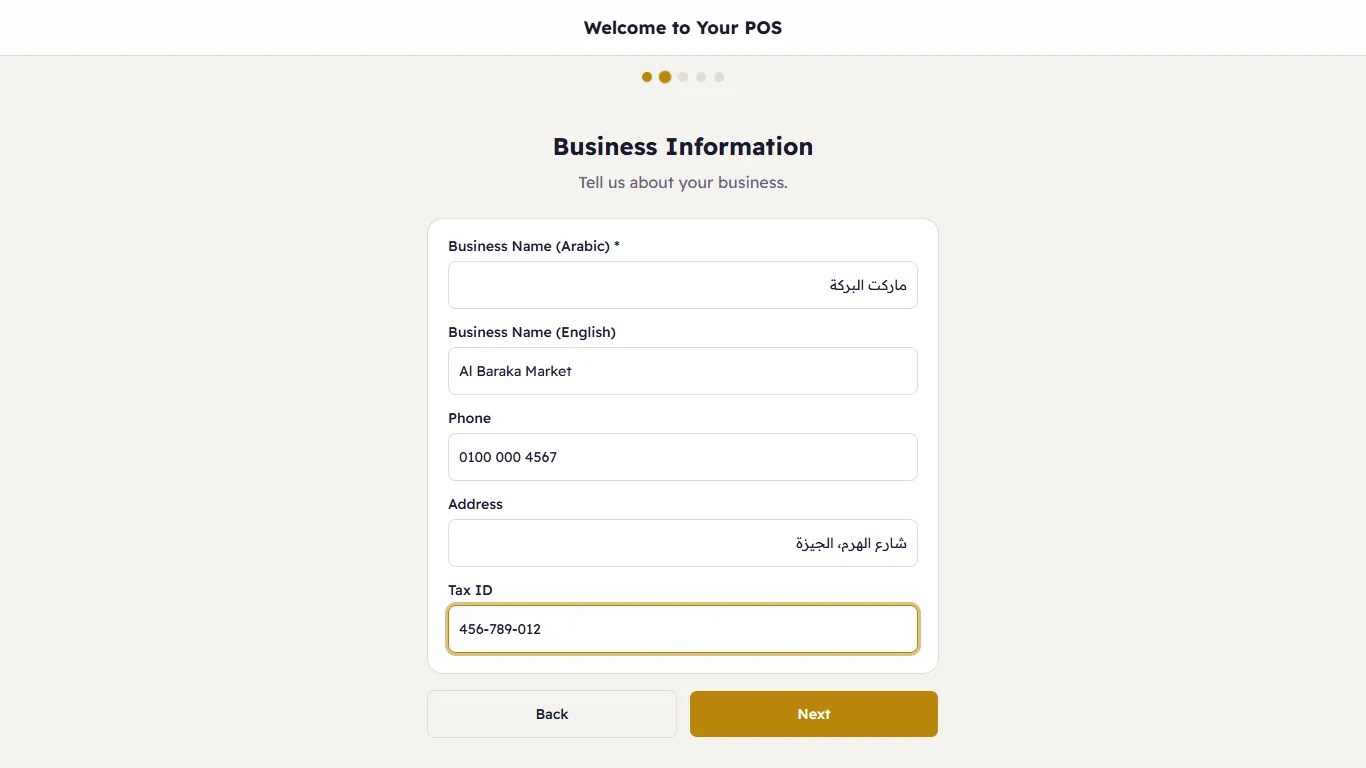
The shop's name in Arabic (required) and English, phone, address and tax ID. They print on the receipt; change them any time in Business info.
3. Your brand colour
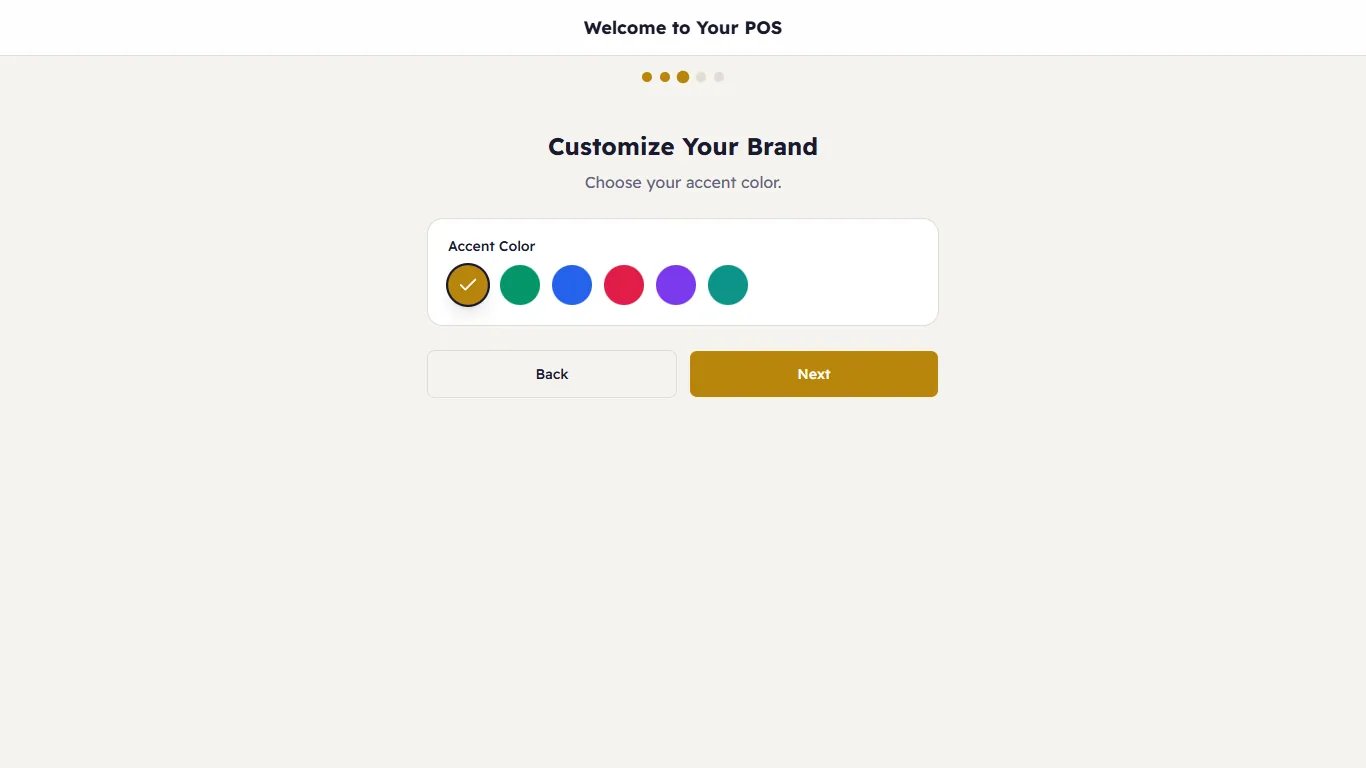
The colour of buttons and highlights.
4. Your products
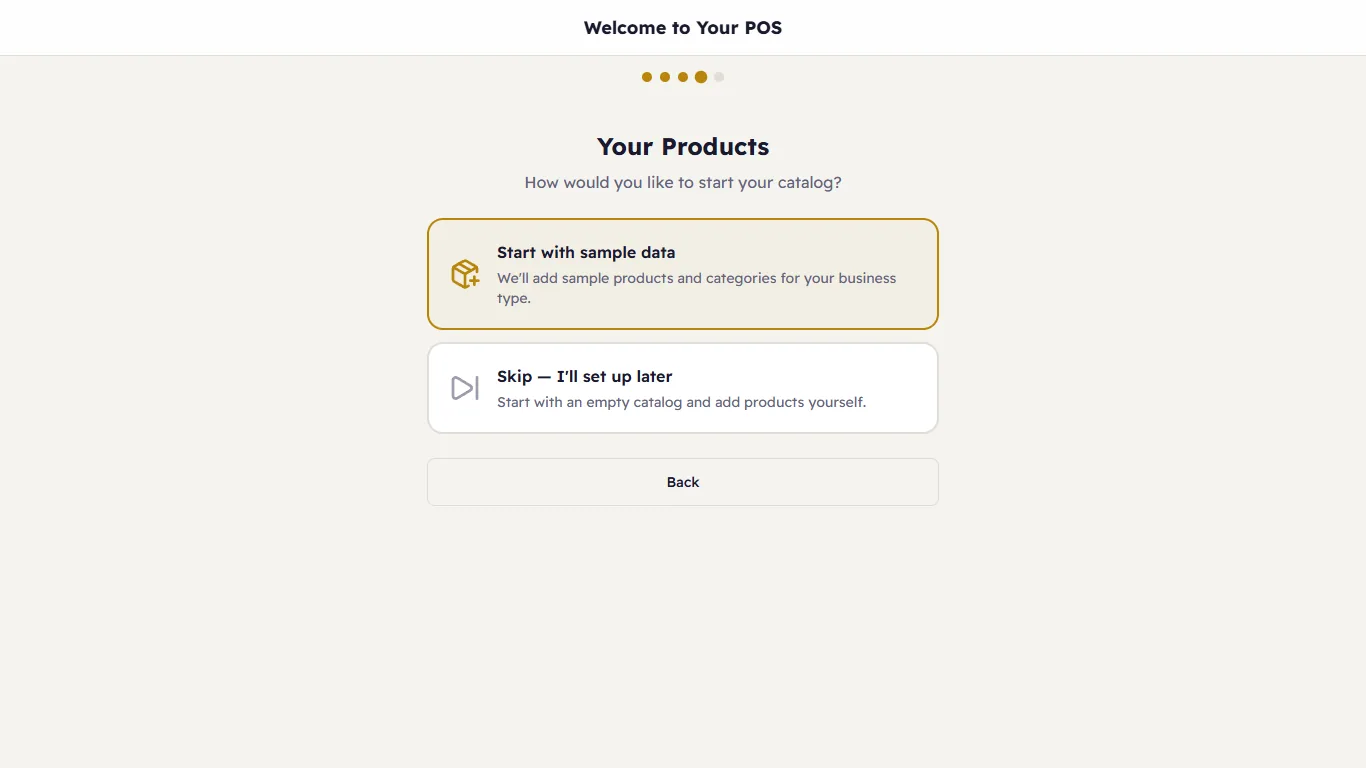
- Start with sample data — sample products and categories for your kind of shop, to try Major before entering your own. A restaurant also gets the Dine-In, Takeaway and Delivery departments and tables.
- Skip — I'll set up later — an empty catalog.
5. Ready
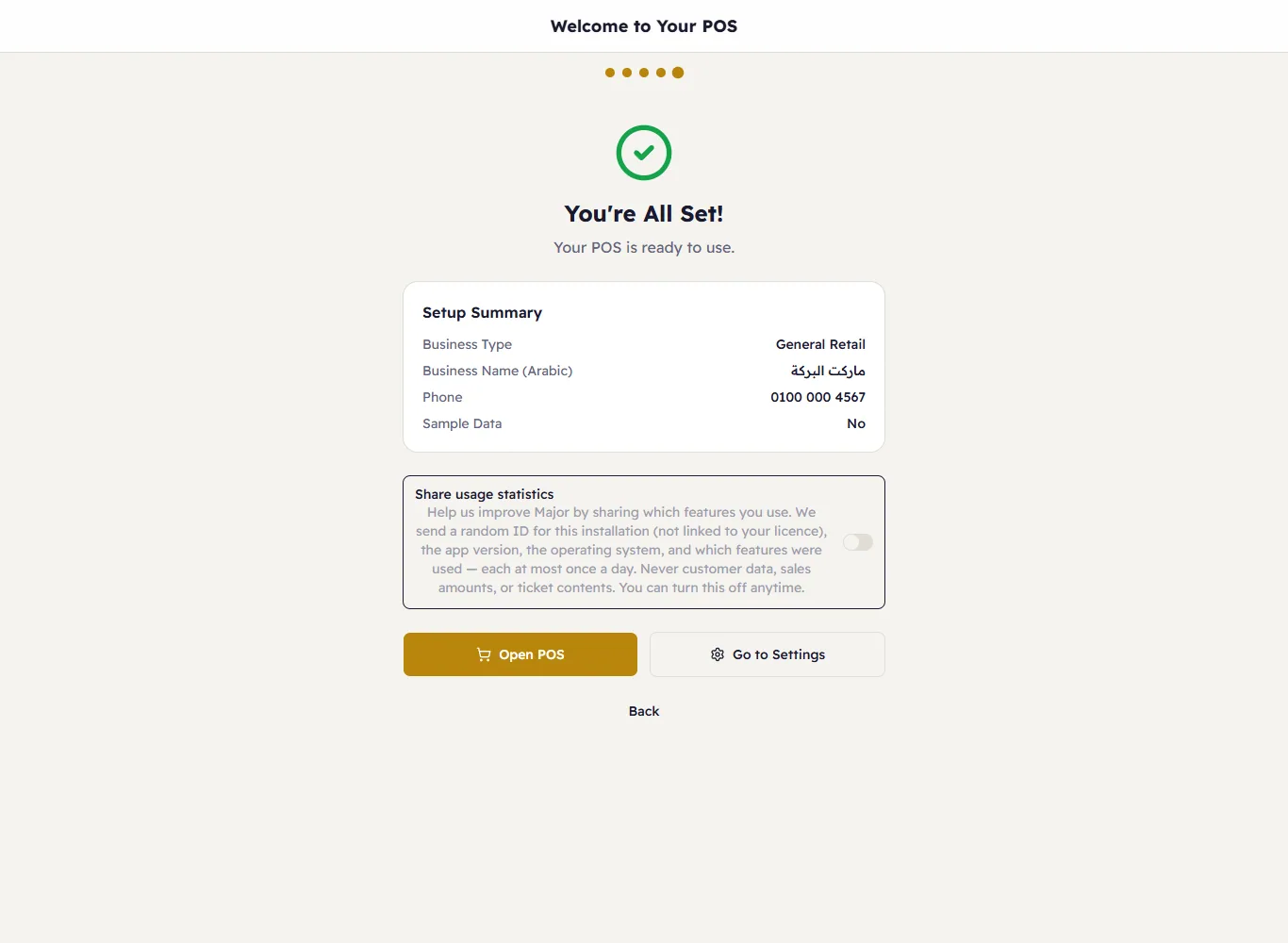
A summary, and Share usage statistics — off unless you turn it on; it sends which features are used, never sales or customers. Open POS goes to the till; Go to Settings to the settings.
Without sample data, the till stays locked until you add products — see Getting the shop ready.