The keypad
How to use the keypad for quantities, barcodes, prices, discounts and cash.
- Who can do this
- Cashier Waiter Manager Owner
- Permission needed
- «Open Ticket»
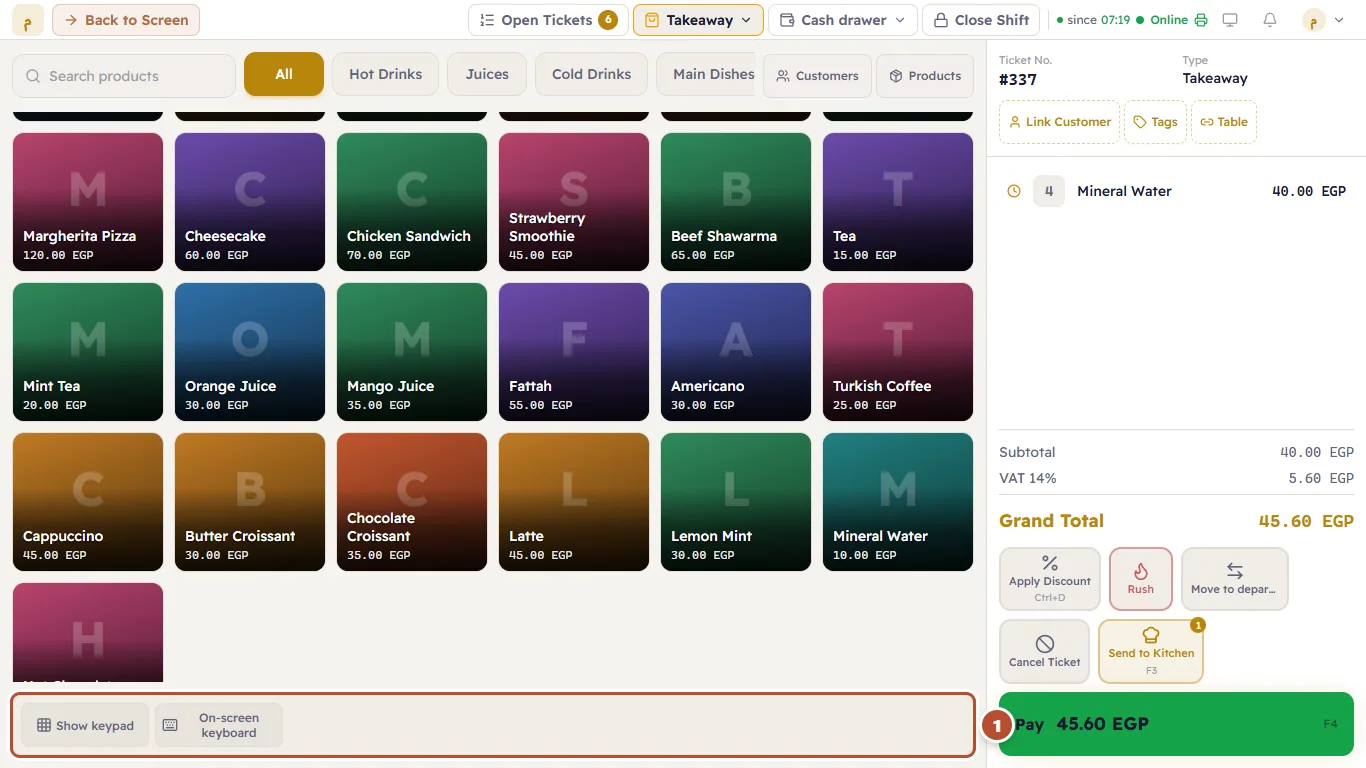
The keypad sits under the items. The idea is simple: type the number first, then press what the number is for. The number you type shows in the box next to the digits, and clears by itself once it has been used.

| Button | If you type a number and press it |
|---|---|
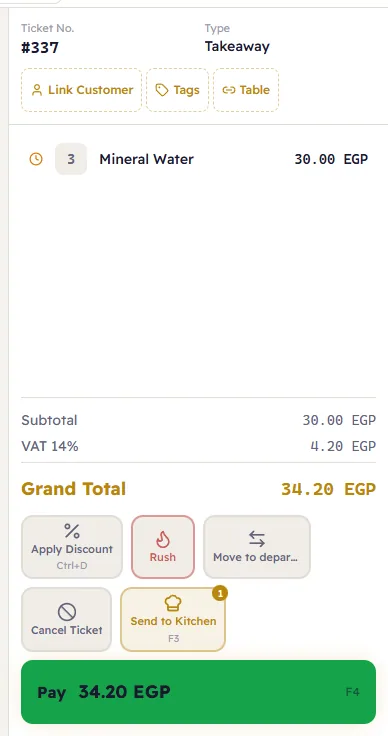
| An item (on the grid) | The item is added with that quantity. For example, type 3 and press Mineral Water = 3 waters. |
| A line on the ticket | Sets that line's quantity to the number. |
| Qty | Sets the quantity of the selected item on the ticket. |
| Price | Changes the price of the selected item (managers and the owner only). |
| % off | A percentage discount on the selected item (10 = 10%). |
| EGP off | A discount of that amount on the selected item. |
| Cash | Opens the payment window with that amount entered as the cash received from the customer. |
| Add | Looks up that barcode and adds the item. |
| Del | Deletes the last digit. Two quick presses (or Esc) clear the whole number. |
Example: the customer wants 3 bottles of water.
- Type 3 on the keypad.
- Press Mineral Water — 3 are added at once.
Barcodes on the keypad
Type the barcode digits and press Add. It is exactly what happens when you scan with a barcode reader.

The ordinary keyboard
The keyboard's digits type into the keypad exactly like tapping the screen, and Enter works like Add. Letters type into the search.
Hide the keypad, or show the on-screen keyboard
In the keypad's corner there are two buttons that never move:
- Hide keypad — shrinks the keypad to a single bar at the bottom so the items get more room. The same button (Show keypad) brings it back. Major remembers your choice on this device.
- On-screen keyboard — shows or hides the keyboard on the screen (for touch screens).