Adding items to the ticket
Add an item by tapping it, by searching, or by barcode.
- Who can do this
- Cashier Waiter Manager Owner
- Permission needed
- «Open Ticket»
- Before you start
- The shift is open.
By tapping the item
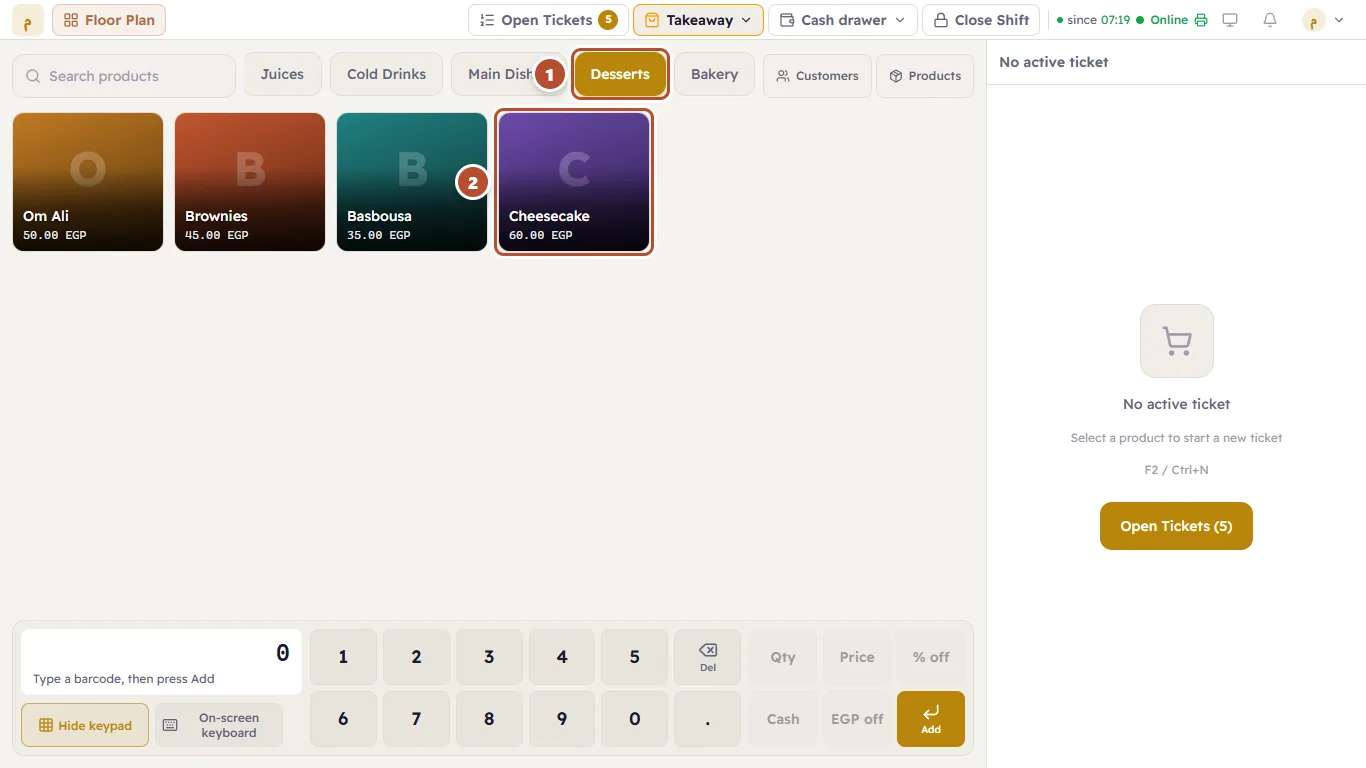
Tap an item's button and it is added to the ticket with a quantity of 1. Tap the same item again and its quantity becomes 2, and so on.
If the screen has many items, choose the category first (1) to see only its items, then tap the item (2).
Some items open a window before they are added: an item sold in sizes asks for the size, an item with extras shows the extras (see Sizes and extras), and an item with a serial number asks you to pick the number (see Serial numbers and batches).
By searching
Just start typing the item's name on the keyboard — no need to tap any field. What you type appears in the search box (1), only the matching items stay on screen, and the number of results is shown next to it.
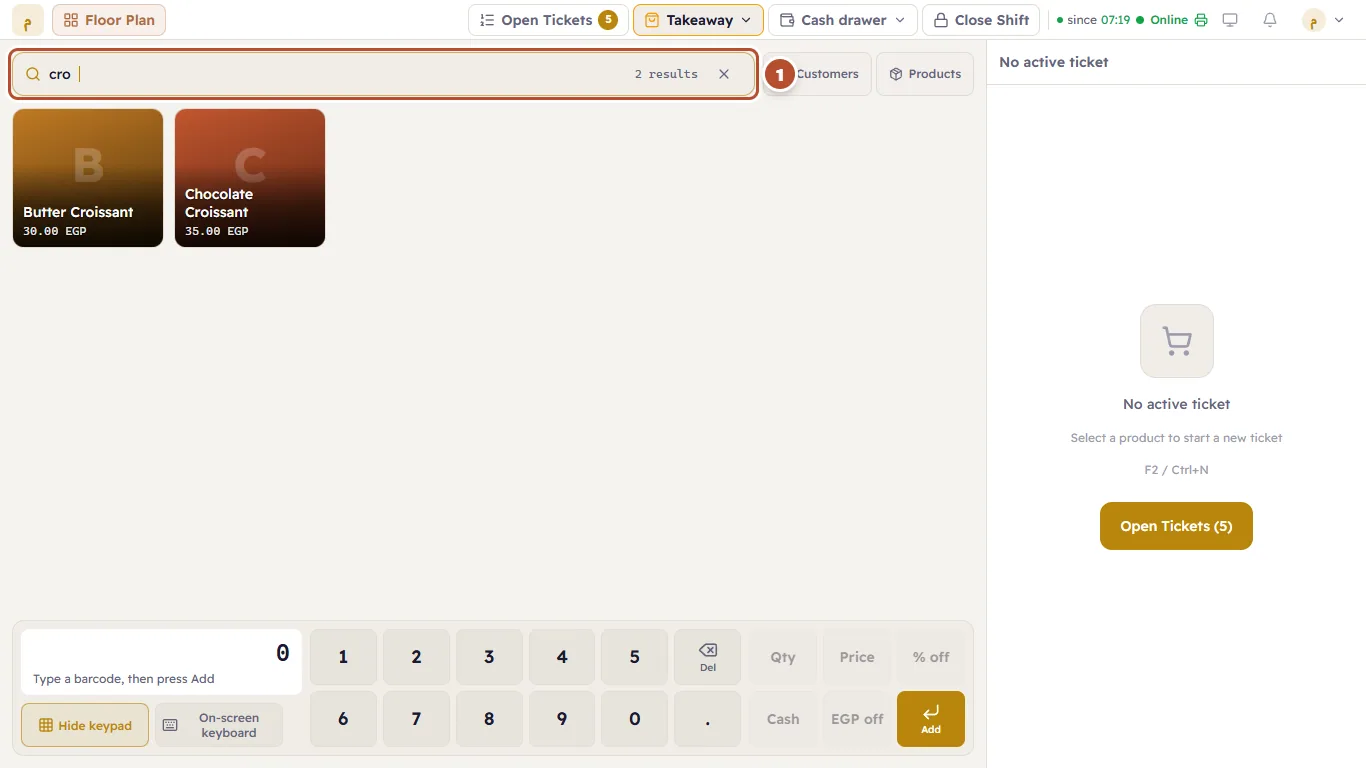
Tap the item you want. To see all items again, press ✕ in the search box (Clear search) or the Esc key.
If no item matches you will see "No products match "…"".
By barcode
- With a barcode scanner: scan the item and it is added straight away. The scanner types the digits quickly followed by Enter, and Major recognises that as a barcode.
- By hand: type the barcode digits on the keypad and press Add.
If the barcode is unknown you will see "Product not found for barcode".
An item is missing?
Deactivated items do not appear on the till. If an item should be there and you cannot find it, a manager checks it is active in Products.