Products — add, edit and deactivate
Add a new product with its price, category and barcode, change it, or deactivate it without deleting it.
- Who can do this
- Manager Owner
- Permission needed
- «Add Product»
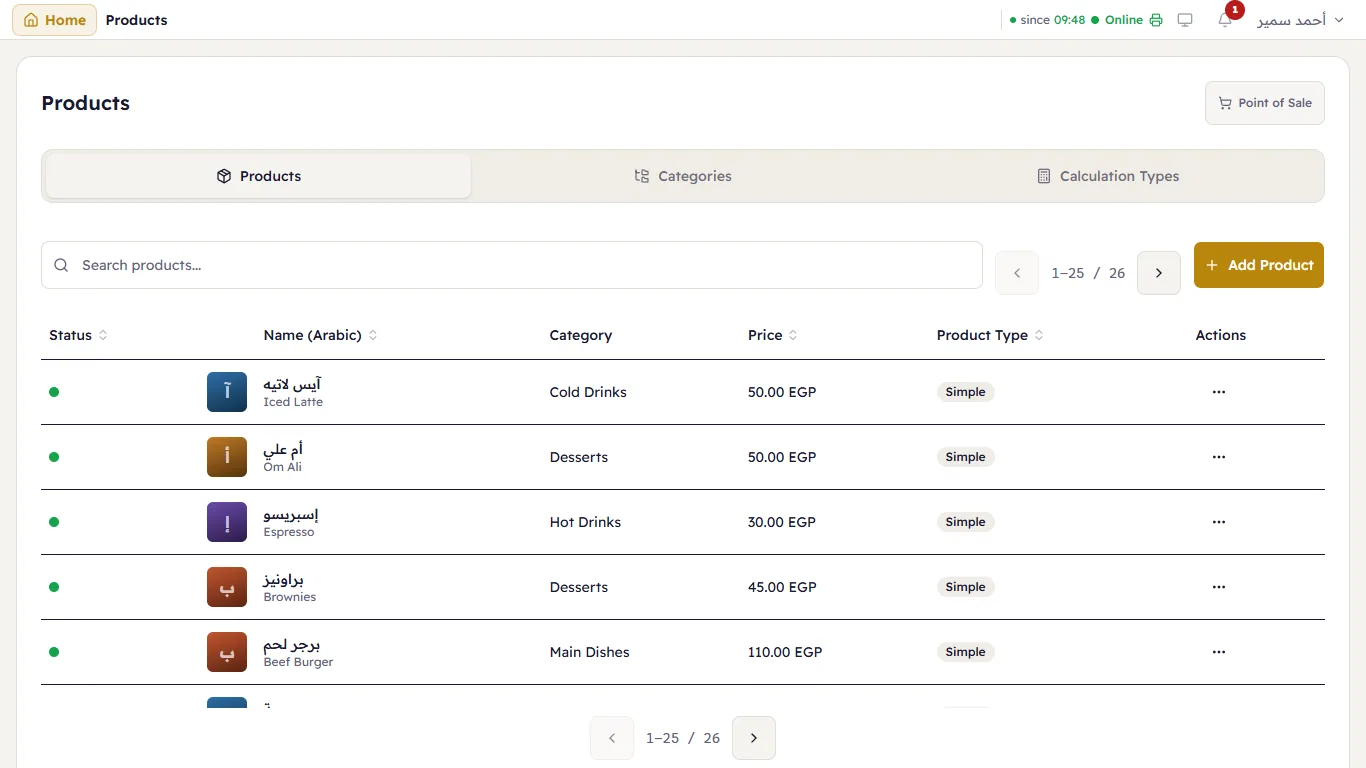
Products are the buttons on the till. You find them in Products on the Home screen.
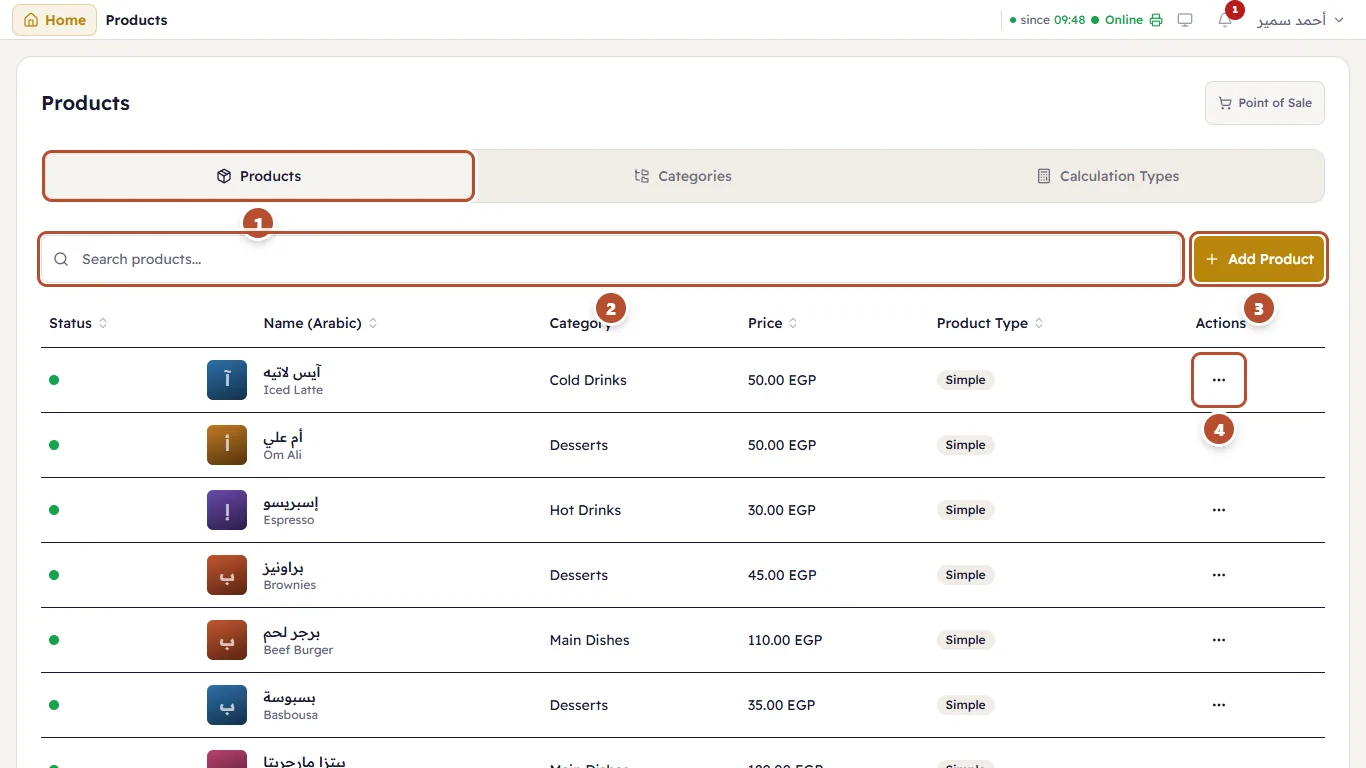
- Products — the list of every product (next to Categories and Calculation Types).
- Search by name.
- Add Product.
- … next to any product: Edit or Deactivate Product.
Each row shows the product's status (green dot = active), its picture or colour, its Arabic and English names, the category, the price and its type (Simple or Variant).
Add a product
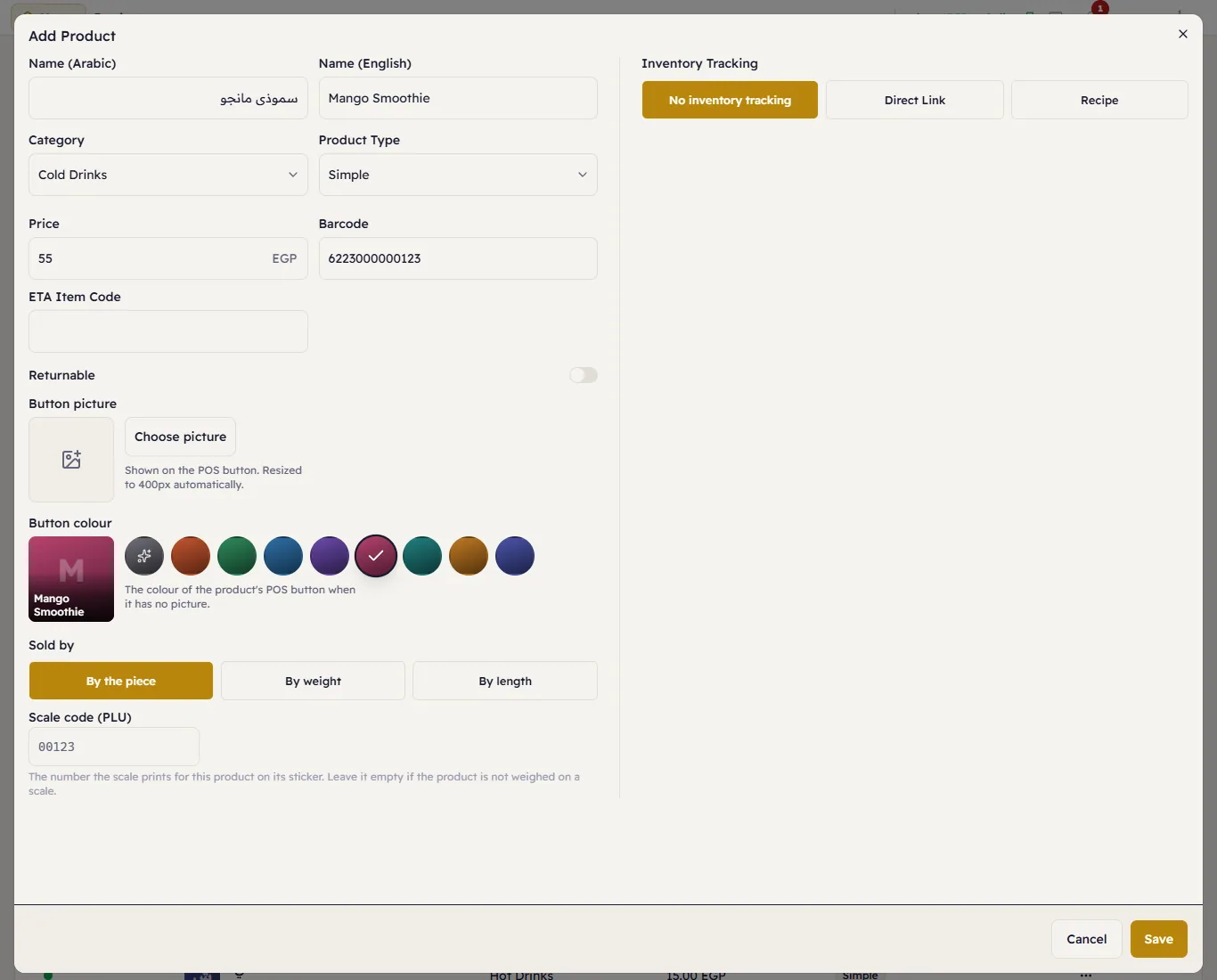
- Press Add Product.
- Type the Name (Arabic) and Name (English).
- Choose the Category.
- Choose the Product Type: Simple (one price), Variant (sizes with different prices — Sizes and extras) or Service (not goods, such as delivery).
- Enter the Price — before VAT (VAT is added on the ticket) — and the Barcode if it has one.
- Returnable — leave it on if the product can be returned.
- Choose the Button colour or add a picture (Product picture and colour).
- Inventory Tracking: No inventory tracking, a Direct Link to a stock item (goods sold as they are), or Recipe (food and drinks made from ingredients — Recipes).
- Press Save.
Edit a product
… → Edit. You can change anything. A price change affects new tickets only — tickets already made keep their price.
Deactivate a product
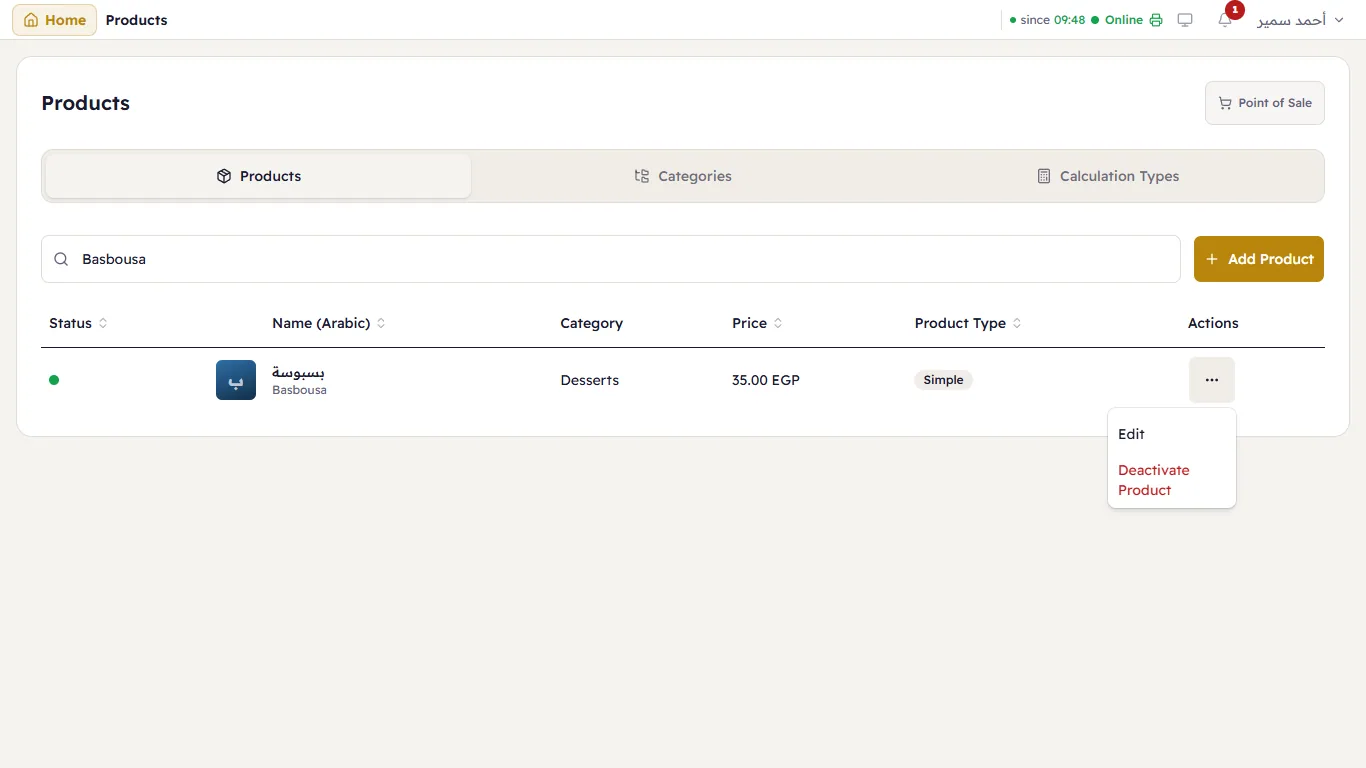
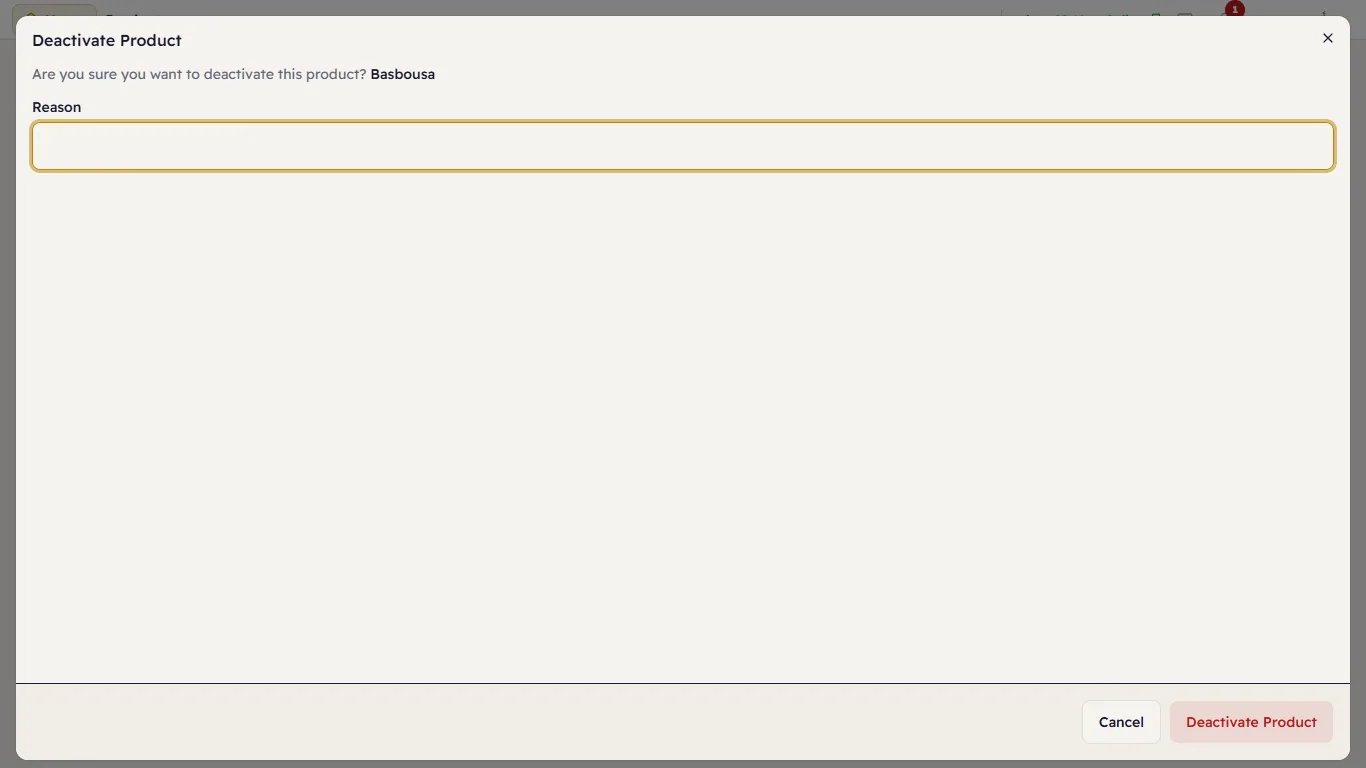
Do not delete a product you stopped selling — deactivate it: … → Deactivate Product and give the reason. It leaves the till but stays in reports and old tickets. Bring it back from … → Reactivate Product.