The account menu (look, language, on-screen keyboard)
Everything in the menu that opens when you press your name at the top of the screen.
- Who can do this
- Everyone
Press your name at the end of the header (on the till it shows as the first letter of your name) to open this menu.
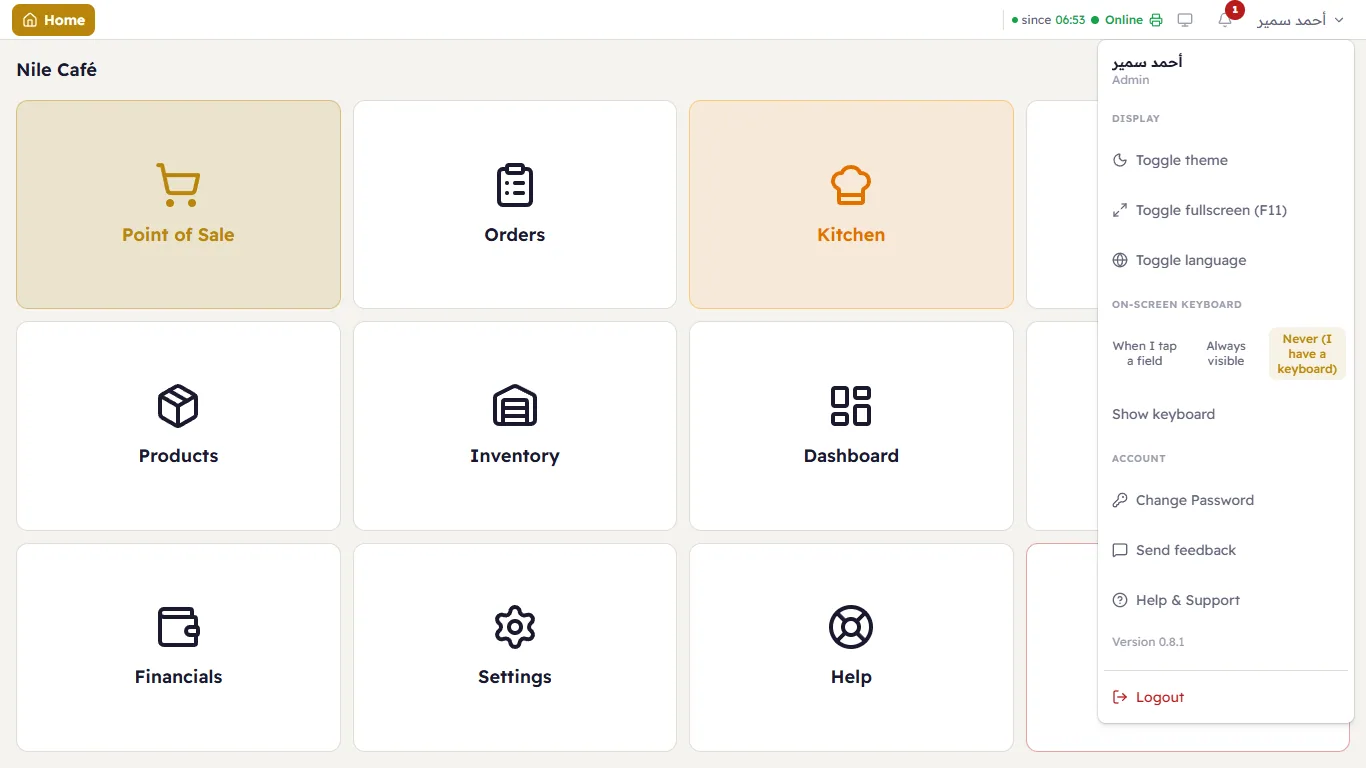
The first line is your name and role (for example Admin), followed by three groups:
Display
- Toggle theme — switches between the light and the dark look. The choice is saved on this device only.
- Toggle fullscreen (F11) — makes Major fill the whole screen, without the browser bar. Same as the F11 key.
- Toggle language — switches between Arabic and English. The screen flips direction by itself (right-to-left ↔ left-to-right).
On-screen keyboard
If the device is a touch screen with no keyboard, Major has a keyboard that appears on the screen. Choose when it appears (When should the keyboard appear?):
| Choice | What it means |
|---|---|
| When I tap a field | Appears by itself when you tap any field you can type in, and goes away when you are done. Best for touch screens. |
| Always visible | Stays at the bottom of the screen all the time. |
| Never (I have a keyboard) | Never appears — for devices with a normal keyboard. |
Under them, Show keyboard opens it now even when the choice is "Never". The keyboard has Arabic and English letters (Change language), digits and symbols.
Account
- Change Password — see Signing in and out.
- Send feedback — found a problem or have an idea? Choose the type (Bug, Idea or Other) and write your message. You can add your email or phone if you would like a reply. What is sent: your message, your contact details if you entered them, the app version and the screen you are on — no sales or customer data.
- Help & Support — opens the Help page.
- Version — the version of Major you have (for example "Version 0.8.1"). Support will ask for it.
The last item is Logout.