Order cards — Start, Ready, Served
Read an order card and move it from New to Preparing to Ready until it is served.
- Who can do this
- Kitchen Manager Owner
- Permission needed
- «Manage KDS»
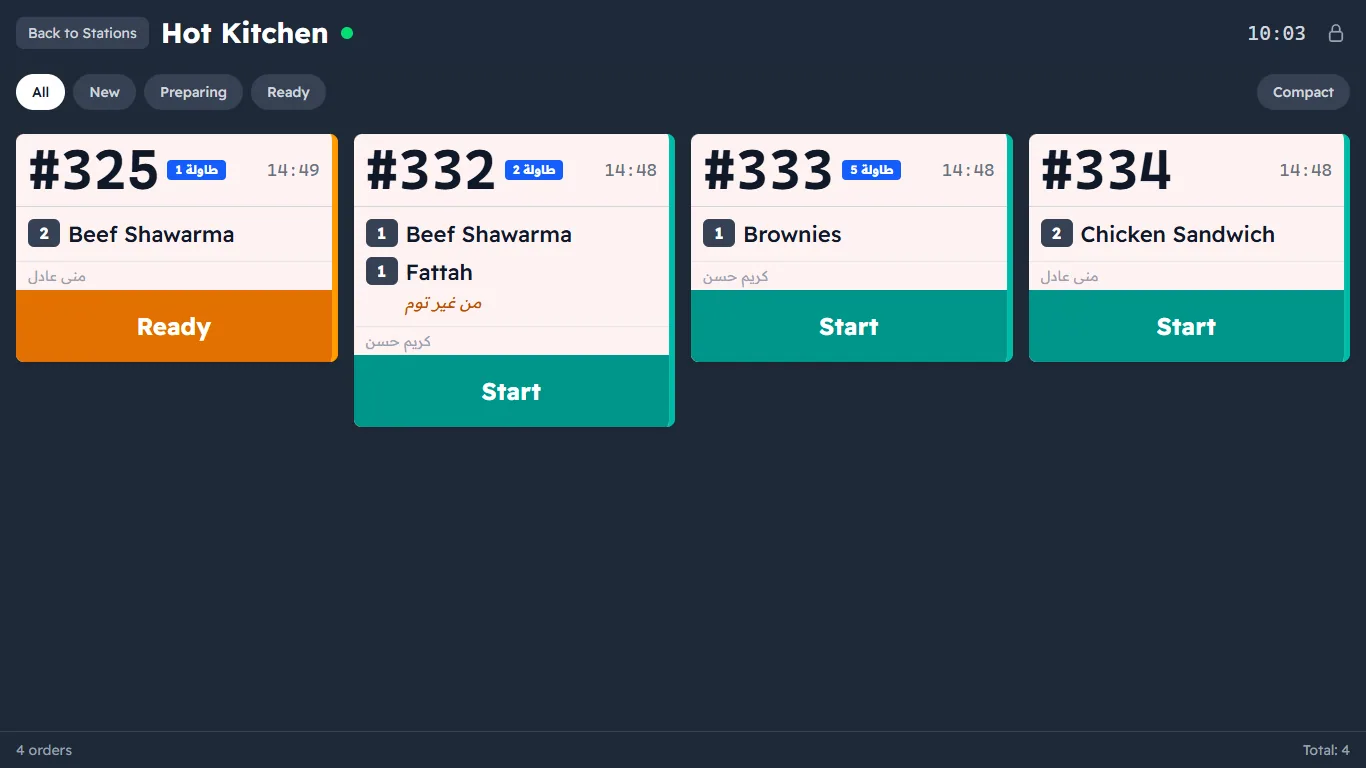
Each order appears as a card. A card shows:
- the ticket number in large type (such as #11), with the table next to it if there is one;
- the time since the order was sent (minutes:seconds);
- the items with quantities, the extras under each item ("- Caramel syrup") and notes in orange ("no garlic");
- the name of whoever sent the order;
- a big button with the next step.
Move an order on
| The card is | Button | After pressing |
|---|---|---|
| New | Start | Preparing — the cook has started it |
| Preparing | Ready | The order is ready to serve |
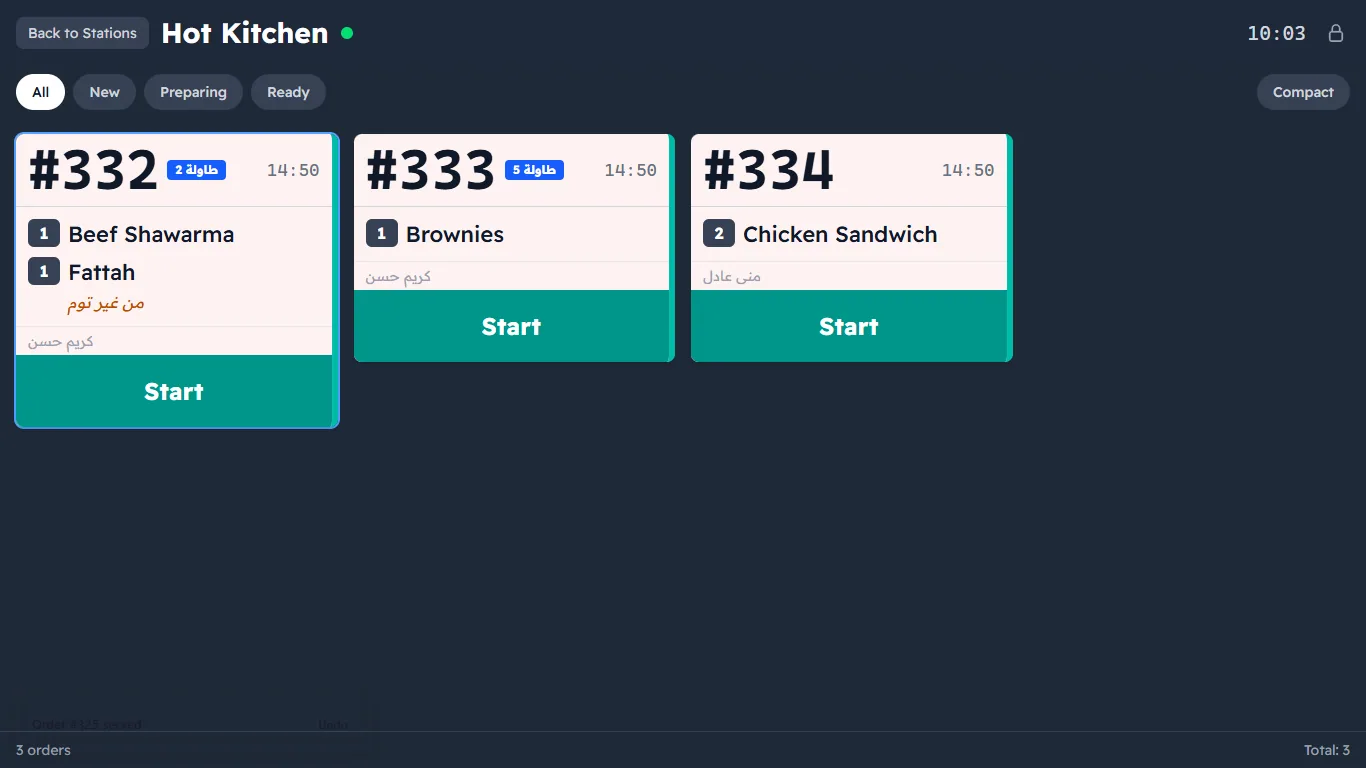
| Ready | Served | The card leaves the screen |
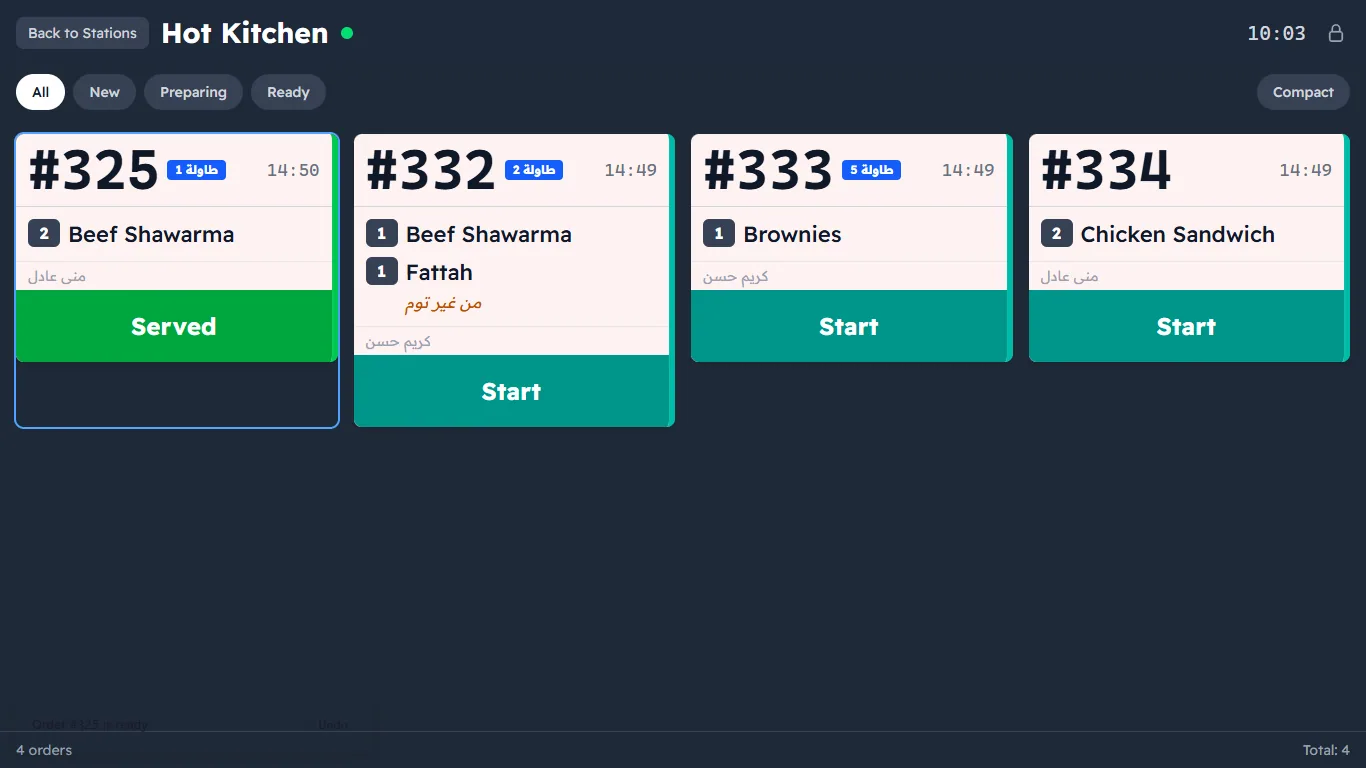
If you press by mistake, a small message at the bottom offers Undo for a few seconds — tap it to put the card back.
Colours and time
The card's colour and timer change as the order gets late: normal → warning → late. The minutes are set per station in Kitchen display setup (Warning (minutes) and Critical (minutes)). A Rush order is marked and has its own sound.
At the top of the screen
- Filter: All, New, Preparing, Ready — shows only the cards in that state.
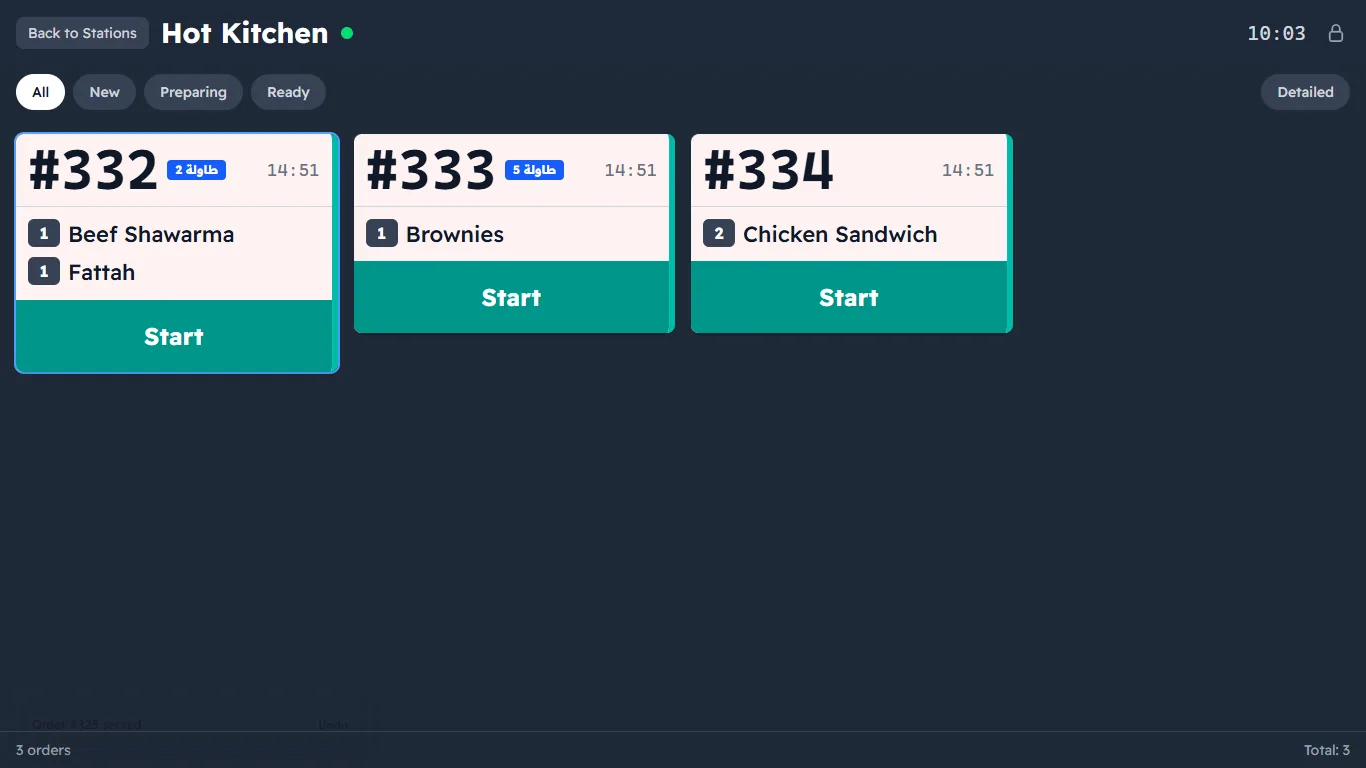
- Compact / Detailed: Compact shrinks the cards so more fit.
- The station's name, a green dot when the screen is connected, how many were served today and the average preparation time, the clock, and the lock button (Screen lock).
- At the bottom: how many orders are shown, and the total.
From the keyboard
| Key | What it does |
|---|---|
| ↑ / ↓ | Selects the previous / next card |
| Enter or Space | Moves the selected card to its next step |
| R | Takes the selected card back one step |
| Esc | Clears the selection |