An order's status (new, ready, out for delivery…)
Move a ticket to its next stage with one tap from the ticket itself, and follow the statuses in the lists and their filter.
- Who can do this
- Cashier Waiter Manager Owner
- Permission needed
- «Change Ticket Status»
- Before you start
- A status group the owner or a manager sets up for the ticket's type (see Status groups).
When the shop owner has set up a status group — delivery stages, say — every ticket of the types it applies to has a status beside its money state: a new ticket starts at the initial status, and you (or a rule) move it from one stage to the next.
The status on the ticket
Under the ticket's row of action buttons there is one row per group that applies to its type: the group's name, then the current status in its colour (or No status), then two buttons:
- The next-status button — it carries the name of the next allowed stage (Ready, say). Press it and the ticket moves there at once. It is not shown when the ticket is at the last stage.
- Change — opens a list of every status allowed from the current one, to skip a stage or go back to an earlier one.
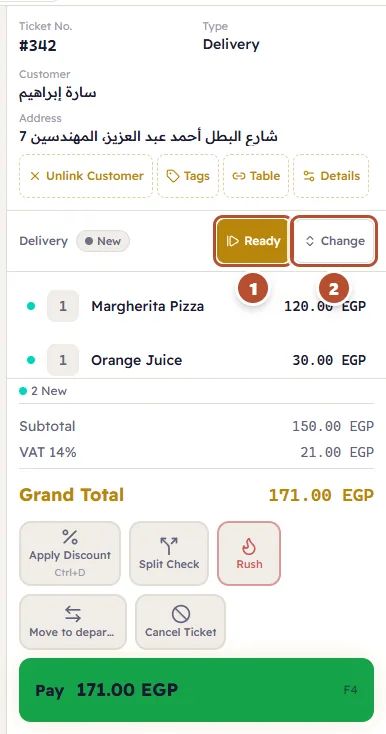
- Open the ticket.
- Press the next-status button in the group's row — or press Change.
- In Delivery: choose the ticket's status, press the status you want, or Cancel.
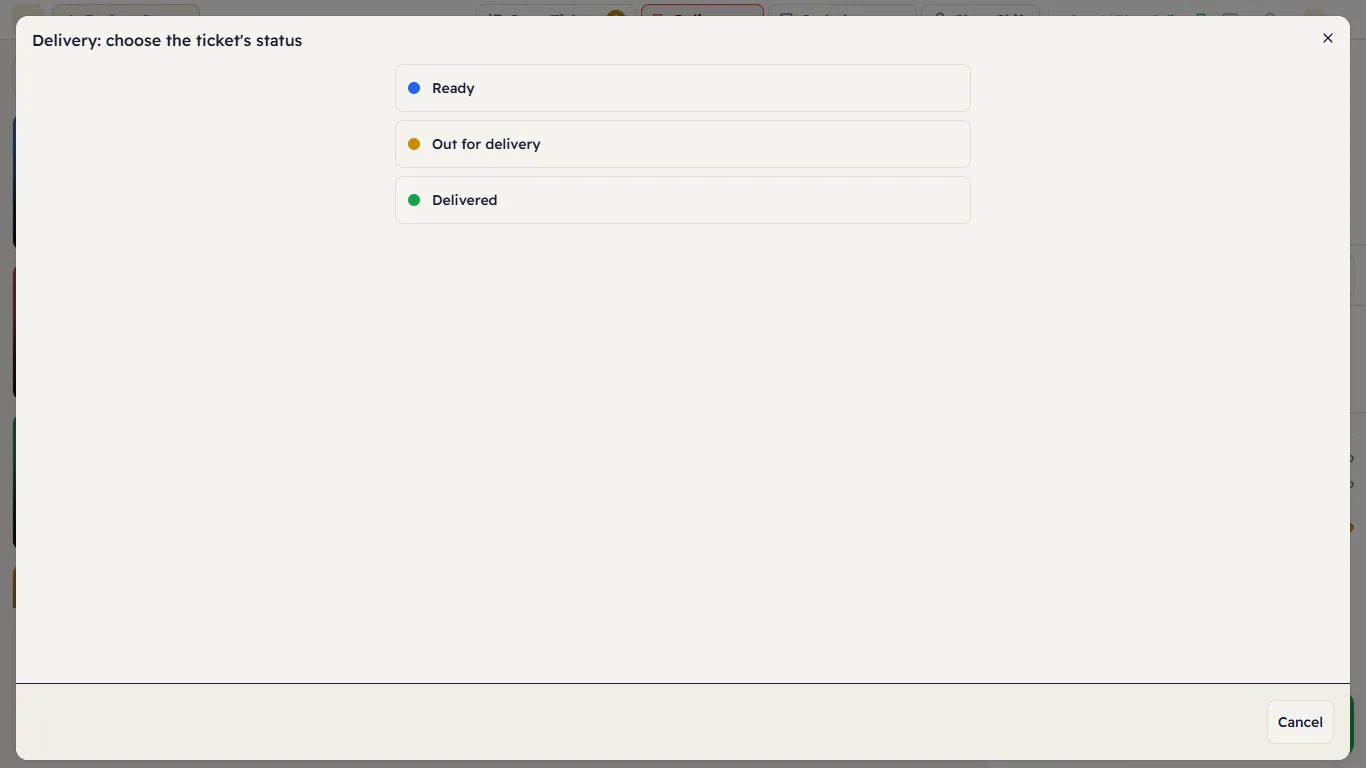
- A status whose move needs a permission you lack is greyed out with the reason under it: "You do not have the permission this status change needs." Ask a manager to move it.
- When there is nowhere to go: "No other status is allowed from the ticket's current one."
- Without the Change Ticket Status permission the row shows the status only, with no buttons.
When can the status change?
- After payment and closing: yes. A delivery is often paid before it leaves, so its stages can still change after the ticket is closed.
- A voided ticket: no. The status row disappears from it, and its status stays as it was when it was voided (the message).
- Another till changed it at the same moment: your change is refused with "This ticket's status changed in the meantime. Refresh and try again." and the new status shows by itself (the message). Nothing is written twice.
- A move the group's order does not allow: "This status cannot follow the current one." (the message)
The status updates by itself on every open screen when another till or a rule (such as Kitchen Order Ready) changes it.
Statuses in the lists
The status shows as a small coloured chip beside the ticket's type on the Orders page and in the Open Tickets list. At most two chips show, then +1 or more for the other groups; hover over a chip to see its group's name.
On the Orders page you can filter tickets by status:
- Choose the group under Status group (the first value, All statuses, shows every ticket).
- Choose under Status: Any status, No status, or one of the group's statuses.
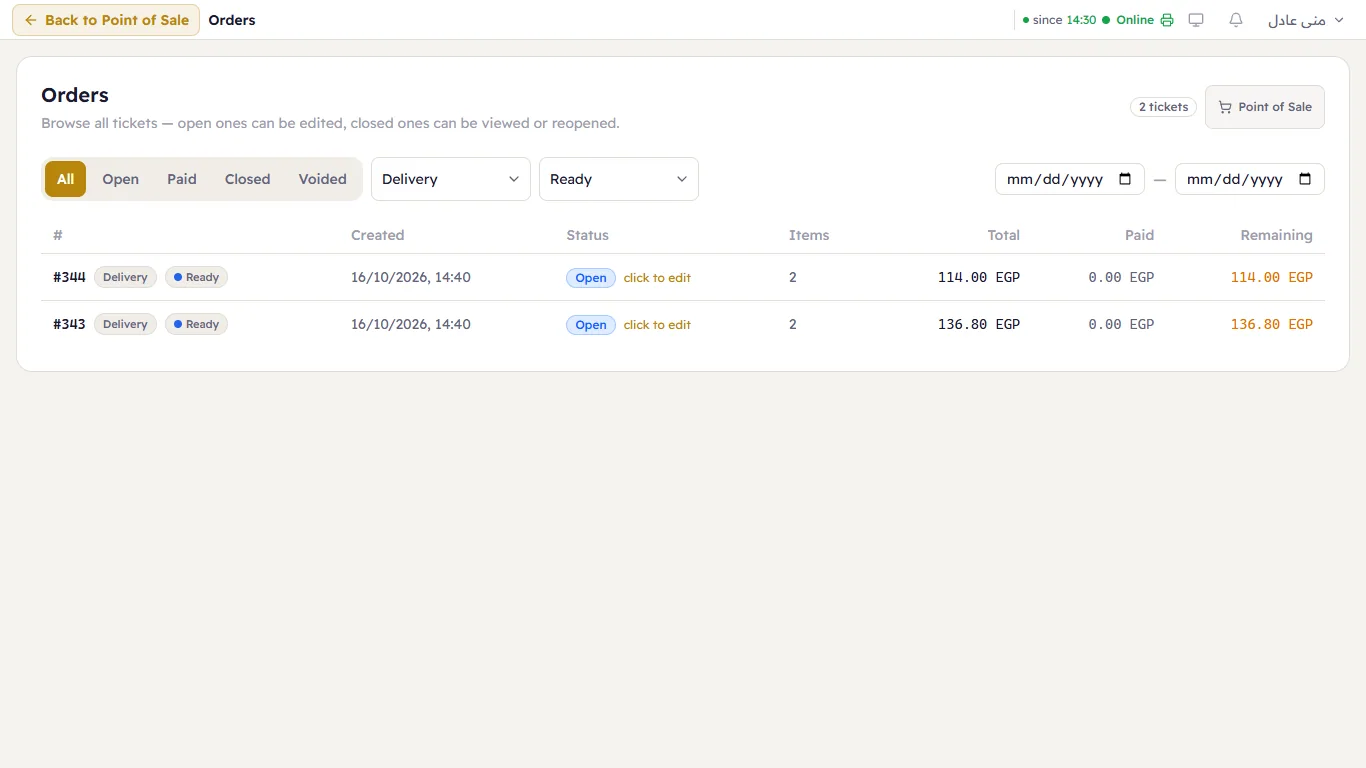
- No status shows tickets of the types the group applies to that have no status in it yet — a ticket closed before the group was created, for example. A ticket of another type is not "no status": it is outside the group.
- Voided tickets never match a status filter.
To follow all of today's orders by stage on one screen, open the status board.