Print documents
What prints and where — each document has targets, each target a printer, a template, copies and the tickets it serves, with a preview before anything prints.
- Who can do this
- Owner
- Permission needed
- «Manage Settings»
A print document says what prints and where. A document does not print by itself: rules run it (such as the built-in rule Print kitchen tickets on send), or the cashier prints it on demand from the receipt. Open Settings → Printers → Print documents:
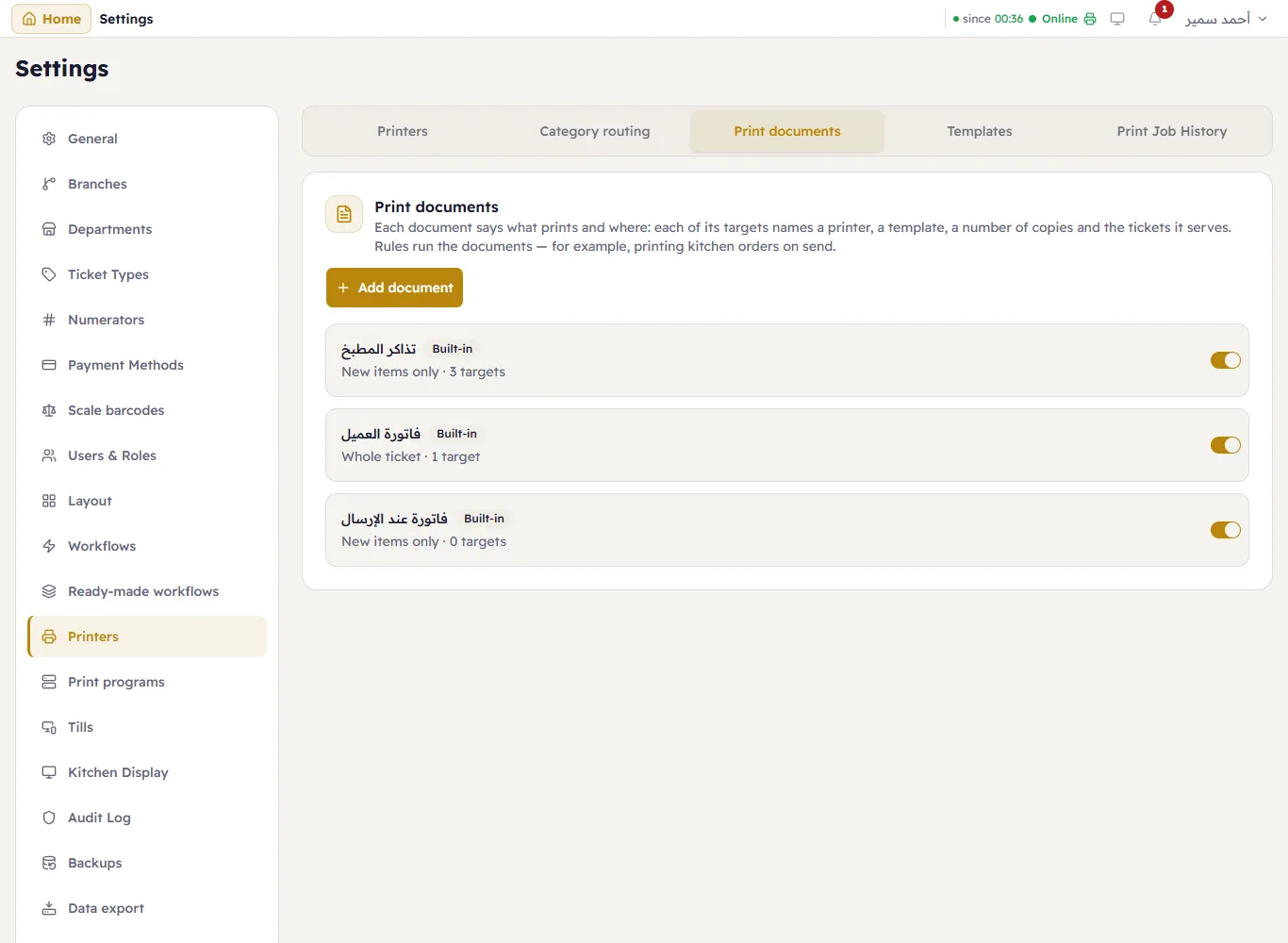
At the top are the documents every shop has, marked Built-in:
- «فاتورة العميل» — the sale receipt, on the till's printer.
- «تذاكر المطبخ» — each send's items on the kitchen printers. This is what the Kitchen routing table writes.
- «فاتورة عند الإرسال» — a slip of the send's items on the printer of the till that sent the order.
A built-in document is never deleted; it can be switched off. A document a rule runs shows Used by a rule and cannot be deleted either: switch it off instead. Every row has its own Active switch, and Add document makes a new one.
The document
Press a document to open it, or Add document:
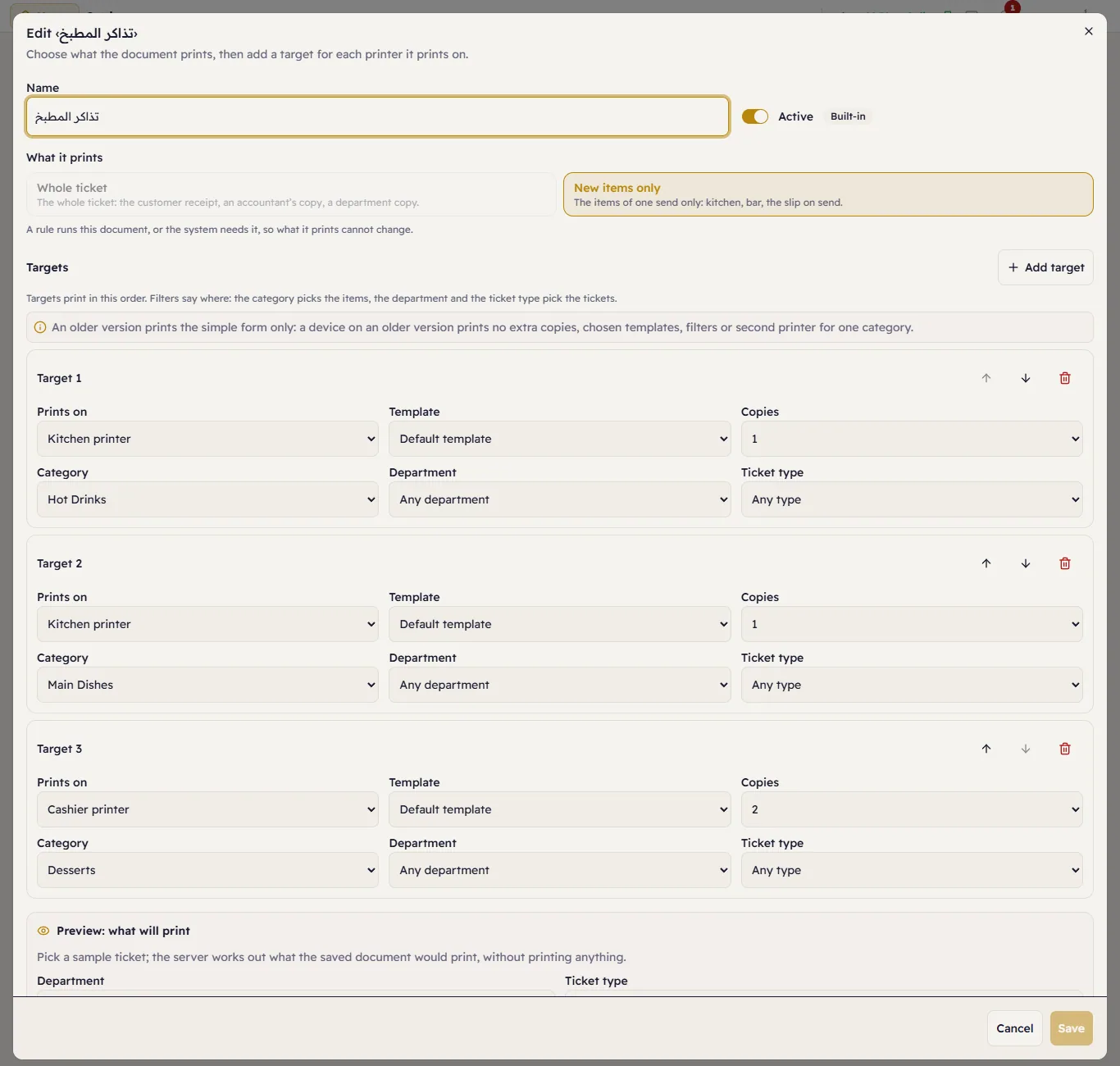
Name and Active.
What it prints:
- Whole ticket — the whole ticket: the customer receipt, an accountant's copy, a department copy;
- New items only — the items of one send only: kitchen, bar, the slip on send. This kind runs only when an order is sent.
What it prints cannot change on a document a rule runs or the system needs. Create a new document instead.
The targets
One target for each printer the document prints on. Add target adds a row:
- Prints on:
- The till's printer — the receipt printer of the till the cashier works on (Tills);
- The department's printer — the printer set on the department (Departments);
- a printer by name — it prints only its own branch's tickets.
- Template — Default template, or a template by name (Receipt templates).
- Copies — 1 to 10.
- The filters — Category picks the items (on New items only the target prints only its category's items; on Whole ticket it prints the whole ticket when an item of its category is on it). Department and Ticket type pick the tickets: the target prints no ticket of another department or another type.
Targets print in the order on screen. The arrows on each row move it up or down, and the remove button deletes it. The save refuses two targets with the same printer and the same filters — raise the Copies of the first instead. A target naming a printer, category or department that was deleted shows (deleted) and prints nothing; remove it before saving.
On New items only, a send's items bound for the same printer share one ticket, with the copies of the first target that sends them there.
The preview
Under the document, Preview: what will print. Choose a Department, a Ticket type and up to three categories, and the server works out what the saved document would print for that ticket — without printing or recording anything:
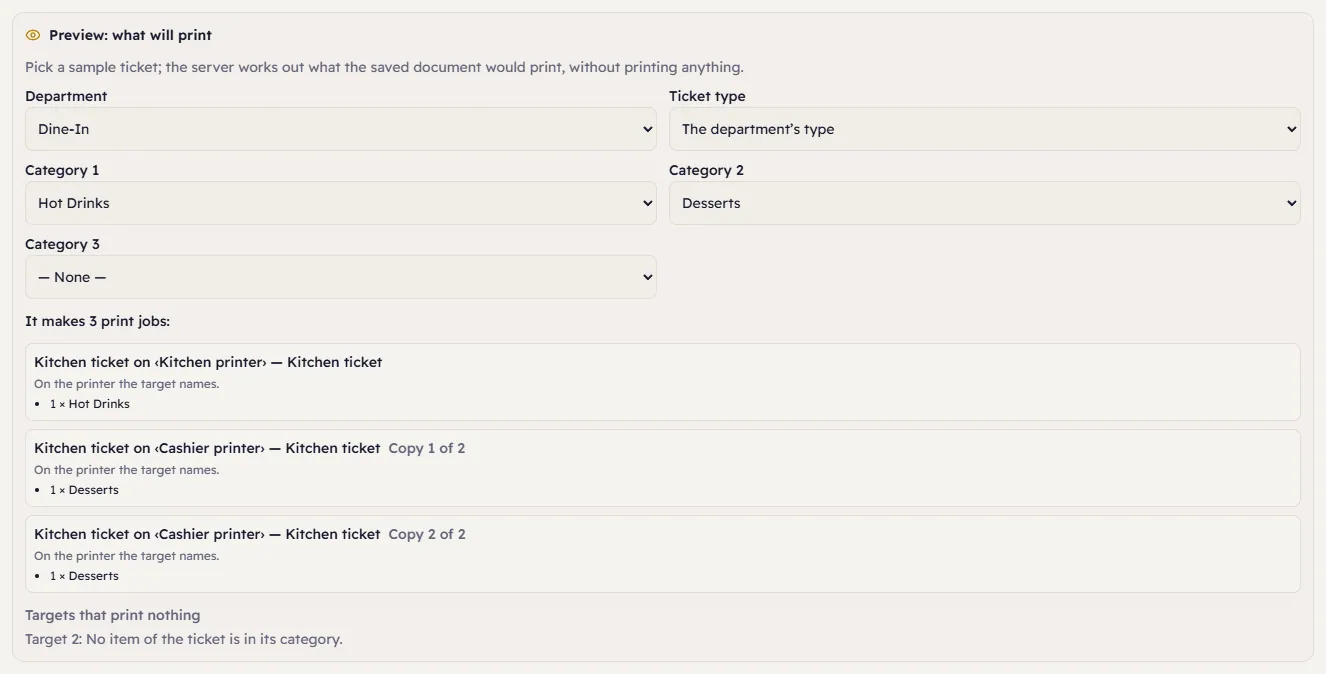
- Each job: its kind, the printer, the template, Copy 2 of 3 when there are several copies, and the items.
- Targets that print nothing — each target that does not print, and why: a filter that does not serve the ticket, a printer that is switched off or in another branch, a department with no usable printer…
- Warnings — such as a document that is switched off, or one that makes more than 4 print jobs every time it runs.
- For a printer that cannot print now, the Fallback printer the job would move to is shown (Printers).
The preview is of the saved document: after a change, it says Save first to preview your changes.
From Category routing and from the department
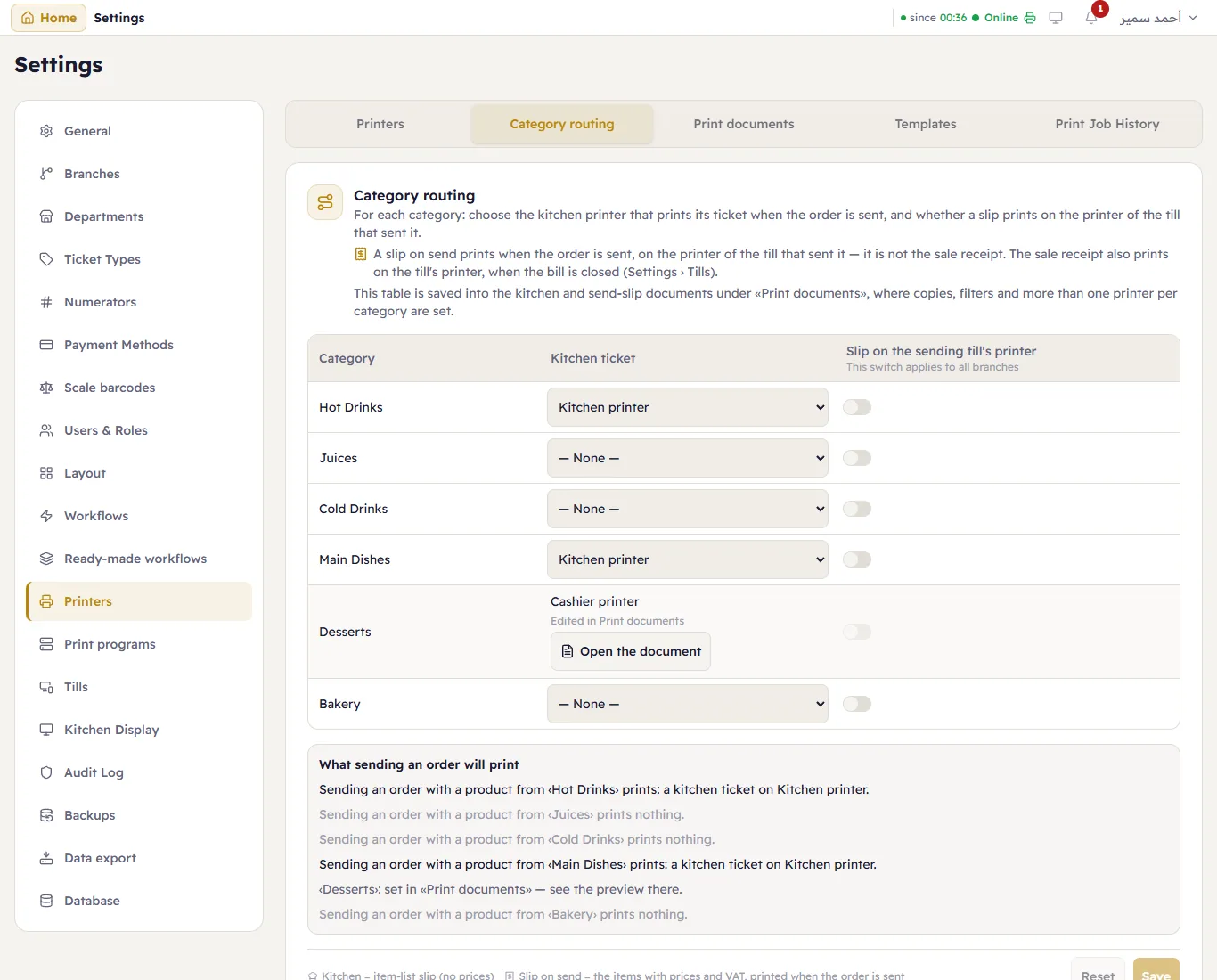
The Category routing table is a simple view of the «تذاكر المطبخ» and «فاتورة عند الإرسال» documents. A category that holds something the table cannot show (copies, filters, more than one printer) turns its row read-only, with Edited in Print documents and a button that opens the document:
And in Departments, Department printer with Print this department's kitchen orders on it adds the department's target to «تذاكر المطبخ» in one tap:
